
If you’ve used Otter.ai for meetings, interviews, or lectures, you’ve probably noticed something: it’s good—but not always perfect.
Maybe it missed a key word. Maybe it got a name wrong. Or maybe the transcript just feels slightly “off.”
The good news? Most of these issues are fixable.
In this guide, I’ll walk you through practical, proven tips to improve Otter AI transcription accuracy—based on real usage, industry insights, and experience. If you’re new to this topic, you can also check Does Otter AI Work for Accents? Accuracy Test with Real Examples.
For a full breakdown, see Review of Otter AI.
Table of Contents
Why Is Otter AI Sometimes Inaccurate?
Before fixing the problem, it helps to understand it.
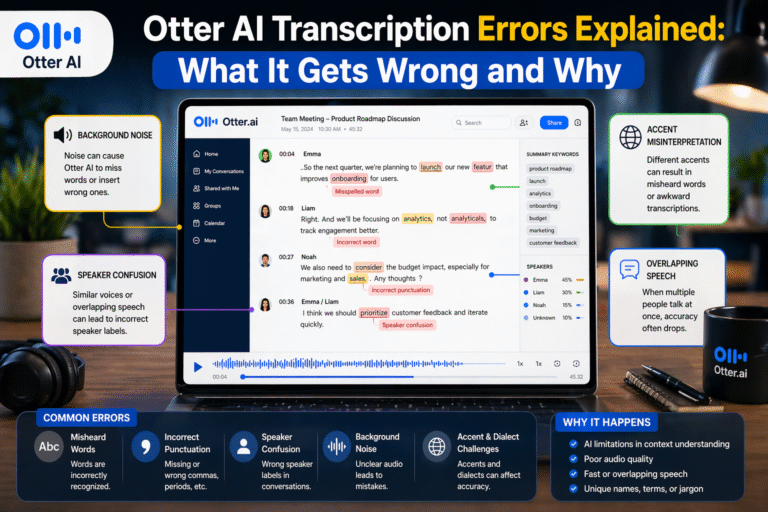
Otter AI relies on speech recognition models trained on large datasets. While these models are powerful, they are not perfect. Accuracy drops when the system encounters unclear audio, strong accents, overlapping speech, or unfamiliar words.
In most real-world cases, Otter AI operates between 80% and 95% accuracy, depending on conditions. That means errors are expected—but many of them can be reduced with the right setup and habits.
How to Improve Otter AI Transcription Accuracy
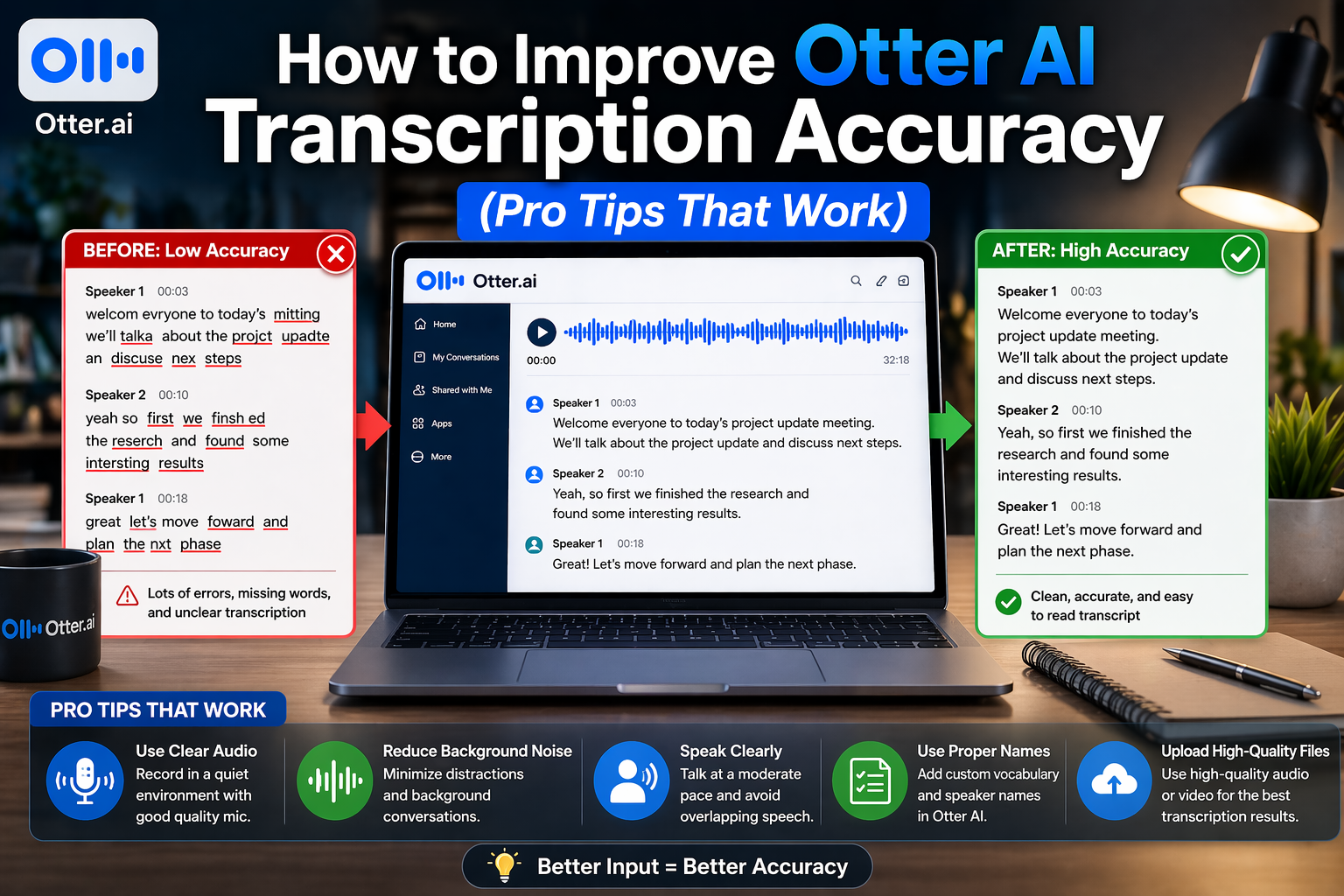
Improving accuracy isn’t about one big fix—it’s about small changes that add up. When applied together, these tips can significantly boost your results.
Use a High-Quality Microphone for Clear Audio
Audio quality is the single most important factor affecting transcription accuracy. If your audio is unclear, no AI tool will perform well.
Using a good external microphone instead of a built-in laptop mic can make a huge difference. Clear sound reduces distortion and helps Otter AI recognize words more accurately. Even in online meetings, using a headset with a decent mic improves clarity instantly.
From experience, switching from a laptop mic to a USB microphone can noticeably improve transcription quality, especially in professional settings.
Reduce Background Noise as Much as Possible
Noise is one of the biggest enemies of accurate transcription. Even small sounds—like typing, fans, or traffic—can confuse the AI and lead to errors.
Recording in a quiet environment helps Otter AI focus on the speaker’s voice. If you’re in a meeting, encourage participants to mute their microphones when not speaking. In physical spaces, try to minimize distractions as much as possible.
As discussed in Otter AI Accuracy for Meetings: Can It Capture Everything Correctly?, noisy environments can reduce accuracy significantly, sometimes dropping below 70%.
Speak Clearly and at a Moderate Pace
It may sound obvious, but how you speak matters a lot.
Speaking too fast, mumbling, or blending words together makes it harder for Otter AI to process speech. On the other hand, speaking clearly and at a steady pace improves recognition.
You don’t need to sound robotic—just aim for natural clarity. This is especially important in interviews, presentations, or recordings meant for transcription.
Avoid Overlapping Speech in Meetings
One of the biggest challenges for Otter AI is handling multiple people talking at the same time.
When voices overlap, the AI struggles to separate speakers and often merges sentences or skips words entirely. Encouraging people to speak one at a time can significantly improve transcription accuracy.
In structured meetings, having a moderator or clear speaking order can make a noticeable difference.
Use Otter AI’s Custom Vocabulary Feature
Otter AI allows you to add custom words, such as names, technical terms, or industry-specific phrases.
This is one of the most underrated ways to improve accuracy. Without customization, Otter may misinterpret uncommon words or replace them with similar-sounding alternatives.
For example, if you frequently use brand names, project titles, or technical jargon, adding them to your vocabulary can reduce repeated errors.
Improve Accuracy for Accents and Diverse Speech
Accents are a known challenge for AI transcription tools. While Otter AI can handle many accents, accuracy varies depending on clarity and familiarity.
As explained in Does Otter AI Work for Accents? Accuracy Test with Real Examples, strong or unfamiliar accents can reduce accuracy significantly.
One way to improve results is to ensure clear pronunciation and good audio quality. Another is to review transcripts more carefully when accents are involved, focusing on key sections like names and important statements.
Use High-Quality Audio Input for Virtual Meetings
If you’re using Otter AI in virtual meetings (Zoom, Google Meet, etc.), the quality of your audio source matters.
Connecting Otter directly to your meeting platform often produces better results than recording from a speaker. Digital audio input is usually cleaner and more consistent than physical recordings.
This small adjustment can lead to noticeably better transcription accuracy.
Review and Edit Transcripts for Final Accuracy
Even with the best setup, no AI transcription is perfect. That’s why reviewing your transcript is essential.
Focus on correcting key details such as names, numbers, technical terms, and important statements. You don’t always need to fix every minor error—just ensure the meaning is clear and accurate.
From experience, a quick 5–10 minute review can turn a good transcript into a reliable one.
Combine AI with Human Review for Best Results
For high-stakes content, combining AI transcription with human editing is the best approach.
As explored in Otter AI vs Human Transcription: Which Is More Accurate?, AI is fast and efficient, but humans are better at understanding context and nuance.
Using Otter AI as a first draft and then refining it manually gives you both speed and accuracy.
Common Mistakes That Reduce Otter AI Accuracy
Sometimes, the problem isn’t the tool—it’s how it’s used.
Using poor-quality microphones, recording in noisy environments, allowing multiple people to talk at once, and skipping transcript reviews are common mistakes that reduce accuracy. Avoiding these issues can significantly improve your results without changing the tool itself.
Final Thoughts: Getting the Best Out of Otter AI
Otter AI is a powerful tool, but like any technology, it works best when used correctly.
By improving audio quality, reducing noise, speaking clearly, and using features like custom vocabulary, you can significantly boost transcription accuracy. Combine that with quick manual reviews, and you’ll get results that are both fast and reliable.
The goal isn’t perfection—it’s efficiency. And with the right approach, Otter AI can save you hours of work while still delivering high-quality transcripts.
FAQs: Improving Otter AI Accuracy
How can I make Otter AI more accurate?
Use a high-quality microphone, reduce background noise, speak clearly, and review transcripts after recording.
Does audio quality affect Otter AI accuracy?
Yes, audio quality is the most important factor. Clear audio leads to significantly better transcription results.
Can Otter AI learn my voice over time?
Yes, features like custom vocabulary and speaker identification can help improve accuracy with continued use.
Why does Otter AI struggle with accents?
Because AI models are trained on limited datasets, which may not fully represent all accents and speech patterns.
Is it possible to get 100% accuracy with Otter AI?
Not consistently. However, with proper setup and manual review, you can get very close in ideal conditions.