
Creating videos with the same character appearing consistently across multiple scenes is one of the biggest challenges beginners face with AI video tools. Characters often change faces, outfits, or proportions from scene to scene, breaking immersion and making the video feel unprofessional.
VideoExpress AI 2.0 solves this problem with its Consistent Character feature.
In this guide, you’ll learn how to use VideoExpress AI 2.0 to create a 3-scene music video featuring the same character throughout—perfect for music videos, storytelling content, branded videos, or faceless-plus-character creators.
By the end of this article, you’ll know how to:
- Design a reusable AI character
- Keep that character consistent across scenes
- Create cinematic music video scenes using prompts
- Apply final edits for a polished result
No advanced editing skills required.
You may also like:
- How to Create Faceless Storytelling Videos Using VideoExpress AI (Beginner-Friendly Guide)
- How to Create Baby Dancing Videos with VideoExpress AI Using a Single Prompt (Step-by-Step Guide)
- How to Create YouTube Shorts Using VideoExpress AI
Table of Contents
What Is the Consistent Character Feature in VideoExpress AI 2.0?
The Consistent Character feature allows creators to lock in a character’s appearance and reuse it across multiple scenes and videos. Instead of generating a new character every time, VideoExpress AI references an uploaded image to maintain the same face, body structure, and overall look.
This is especially useful for:
- Music videos
- Brand mascots
- Story-driven content
- Series-based videos
- AI-generated performers or artists
Instead of fighting character inconsistency, creators focus on story, motion, and mood.
Preparing Your Video: Create the Character First
Before opening VideoExpress AI, the most important step is creating your character.
For this guide, the example will be a music star, but the same process works for any character type.
Step 1: Generate Your Character Image
Use any AI image generator such as:
The goal is to generate one full-body, high-quality image of the character. This image will be used as the reference photo.
Tips for best results:
- Use a clear, front-facing or slightly angled pose
- Avoid extreme lighting or heavy motion blur
- Choose a distinctive outfit and hairstyle
- Keep the character realistic or stylized—but consistent
Once the image is ready, save it. This will be uploaded into VideoExpress AI.
Plan the 3-Scene Music Video Structure
To keep things simple and beginner-friendly, this guide uses three scenes, each showing the same music star in a different environment.
Scene Overview
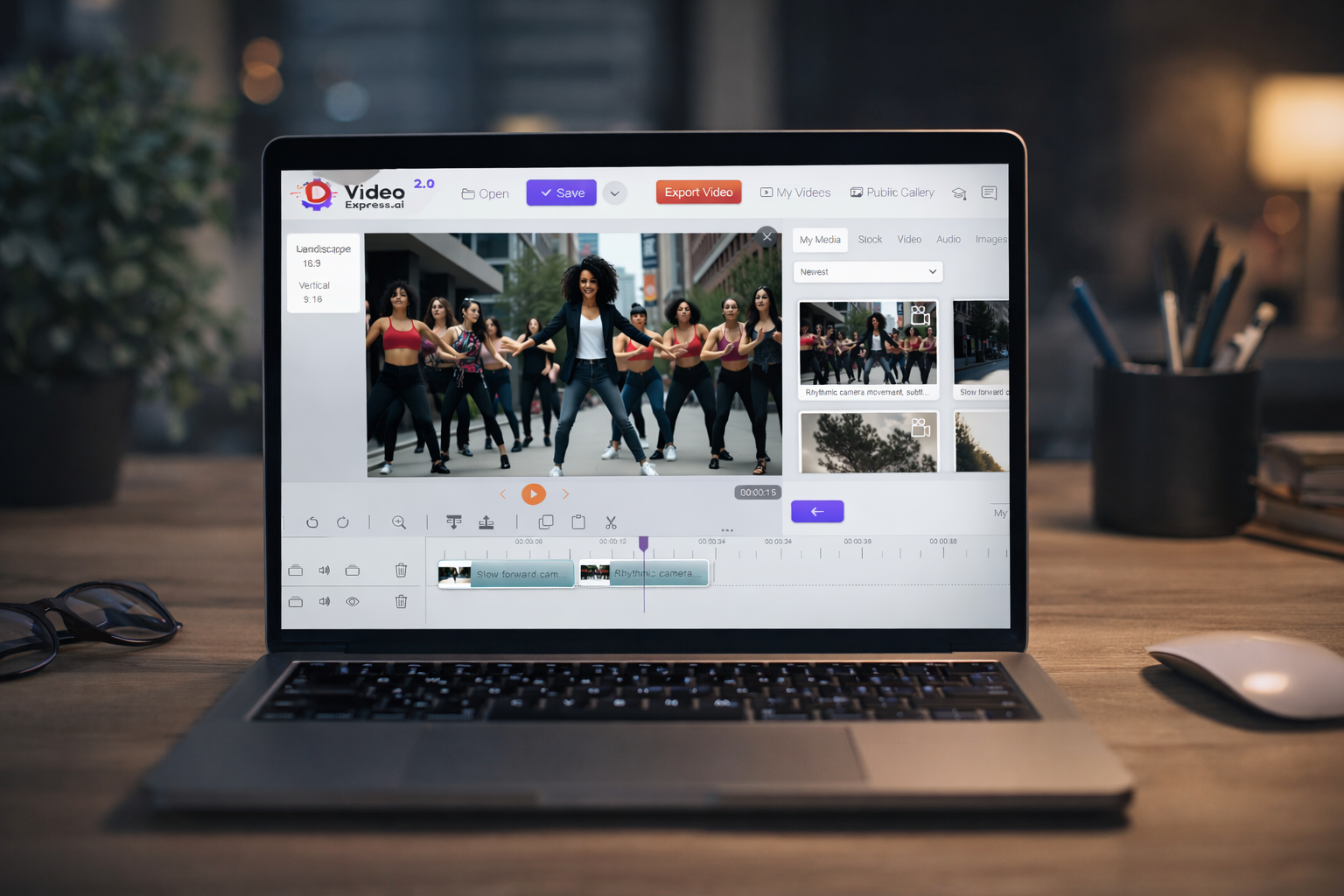
- Music star walking alone on a city street in daylight
- Music star dancing with a group of dancers
- Music star performing on stage in a night club setting
Each scene will use:
- One image scene prompt
- One video action prompt
AI tools like ChatGPT can generate these prompts quickly.
Scene Prompts for Illustration (Use or Modify)
Below are example prompts you can use directly or adapt.
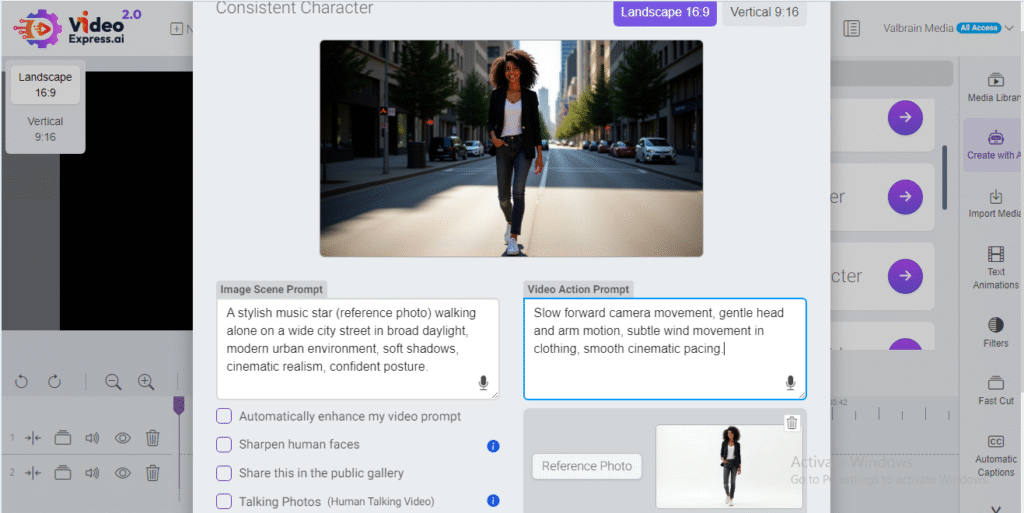
Scene 1: Opening – Calm Introduction
Image Scene Prompt:
“A stylish music star walking alone on a wide city street in broad daylight, modern urban environment, soft shadows, cinematic realism, confident posture.”
Video Action Prompt:
“Slow forward camera movement, gentle head and arm motion, subtle wind movement in clothing, smooth cinematic pacing.”
Scene 2: Energy – Dance Sequence
Image Scene Prompt:
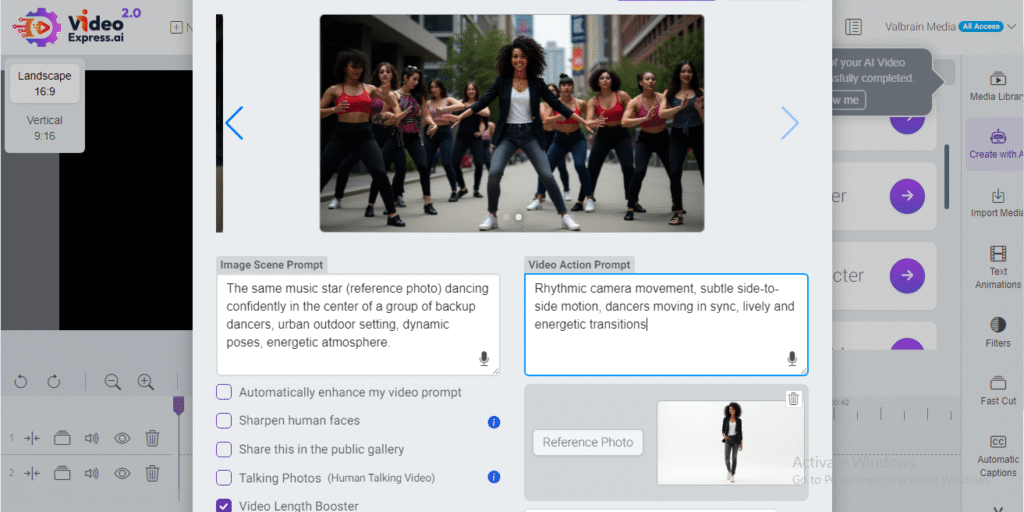
“The same music star dancing confidently in the center of a group of backup dancers, urban outdoor setting, dynamic poses, energetic atmosphere.”
Video Action Prompt:
“Rhythmic camera movement, subtle side-to-side motion, dancers moving in sync, lively and energetic transitions.”
Scene 3: Climax – Performance Scene
Image Scene Prompt:
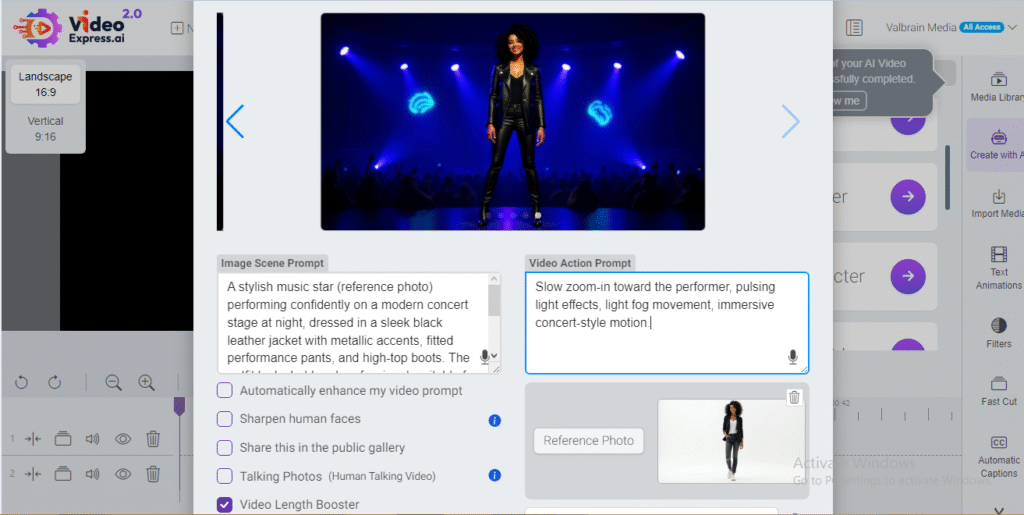
“A stylish music star performing confidently on a modern concert stage at night, dressed in a sleek black leather jacket with metallic accents, fitted performance pants, and high-top boots. The outfit looks bold and professional, suitable for a live music performance. The stage is illuminated with blue and purple lighting, soft holographic light effects floating in the background, and a cheering crowd slightly blurred for cinematic depth.”
Video Action Prompt:
“Slow zoom-in toward the performer, pulsing light effects, light fog movement, immersive concert-style motion.”
Step-by-Step: Creating a Consistent Character Video in VideoExpress AI 2.0
Now let’s bring everything together inside VideoExpress AI.
Step 1: Log in to the VideoExpress 2.0 Dashboard
Go to app.videoxpress.ai and log in. The dashboard is where all creation tools are accessed.
Step 2: Click “Consistent Character” Under Create with AI
On the right-side menu, locate Create with AI, then click “Consistent Character.”
This mode is specifically designed to keep your character’s appearance consistent across scenes.
Step 3: Upload the Reference Photo
Upload the AI-generated character image you created earlier.
This image becomes the visual anchor for every scene. VideoExpress AI will reference it to maintain facial features, outfit, and proportions.
Step 4: Add the Image Scene Prompt
Paste the image scene prompt for Scene 1 into the prompt field.
This describes the environment and setting while keeping the character consistent.
After generation, preview the image to confirm the character looks correct.
Step 5: Add the Video Action Prompt
Next, paste the video action prompt to define motion, camera movement, and atmosphere.
Click Create Video and wait for the notification confirming completion.
Repeat Steps 4 and 5 for Scenes 2 and 3 using their respective prompts.
Each video will appear in your library, all featuring the same character.
Final Edits and Polishing the Music Video
Once all three scenes are generated, move to final editing.
Inside VideoExpress AI, you can:
- Arrange scenes in sequence using the timeline
- Add transitions between scenes
- Insert background music or sound effects
- Adjust timing for better rhythm
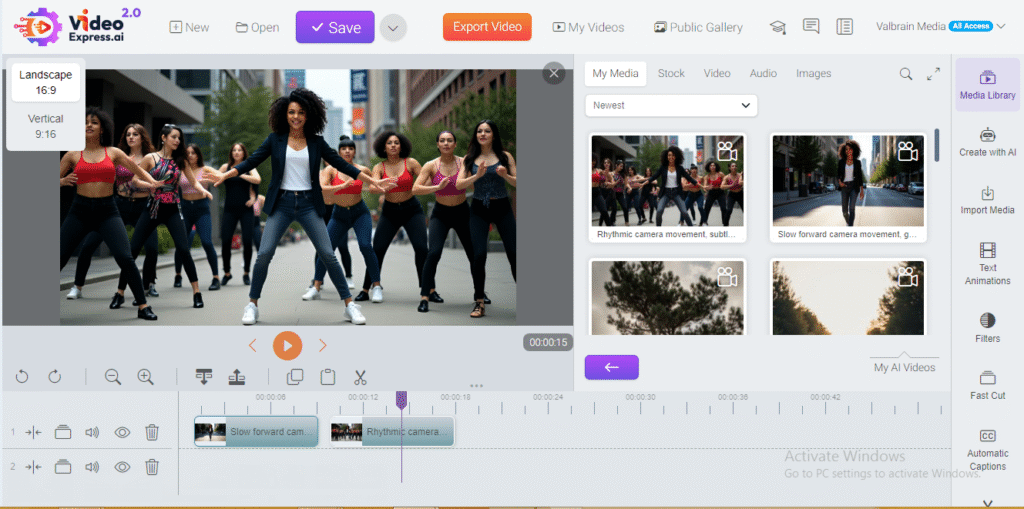
For creators who want advanced control, videos can be downloaded and finalized in tools like CapCut—especially useful for syncing visuals precisely to music beats.
Why Consistent Characters Matter in AI Videos
Consistency builds trust and professionalism. When viewers see the same character across scenes, the video feels intentional, cinematic, and polished.
For music videos especially, consistent characters:
- Strengthen artist identity
- Improve storytelling flow
- Increase viewer engagement
- Make content feel branded rather than random
VideoExpress AI 2.0 removes the technical barriers that previously made this difficult for beginners.
Conclusion
Creating a consistent character across multiple scenes no longer requires advanced 3D tools or professional animation skills. With VideoExpress AI 2.0, beginners can design a character once and reuse it confidently across an entire music video.
By combining a strong reference image, clear prompts, and the Consistent Character feature, creators can focus on creativity instead of technical frustration.
For anyone looking to produce professional-looking music videos, storytelling content, or branded visuals, this workflow offers a powerful and beginner-friendly starting point.
Frequently Asked Questions
What is Consistent Character in VideoExpress AI 2.0?
Consistent Character in VideoExpress AI 2.0 is a feature that allows you to keep the same character appearance across multiple scenes in a video. Instead of your character changing faces or outfits randomly, the AI uses a reference image to maintain visual continuity.
Do I need to design my character inside VideoExpress AI?
No. You can create your character using any AI image generator such as ChatGPT, Artistly, or other image tools. Once you have a full-body image, simply upload it as a reference photo inside VideoExpress AI 2.0.
How many scenes can I use with a consistent character?
You can use multiple scenes, but for beginners, starting with a 3-scene structure is ideal. This helps you understand how image scene prompts and video action prompts work before scaling to longer videos.
What’s the difference between an image scene prompt and a video action prompt?
An image scene prompt describes how the scene should look (environment, lighting, mood), while the video action prompt explains what the character should be doing (walking, dancing, performing on stage). Both work together to produce realistic motion and consistency.
Can I use Consistent Character for music videos only?
Not at all. While it’s perfect for music videos, you can also use Consistent Character in VideoExpress AI 2.0 for storytelling videos, ads, explainer videos, short films, and branded content.
Why does my character still look slightly different in some scenes?
Small variations can happen if prompts are vague or if lighting and camera angles change drastically. Using clear prompts and keeping scene descriptions aligned greatly improves consistency.