
How to Create Baby Dancing Videos with VideoExpress AI: Step-by-Step Guide
Baby dancing videos are everywhere right now — from TikTok and YouTube Shorts to Facebook Reels. They’re cute, funny, highly shareable, and surprisingly easy to create with the right AI tool. One of the simplest ways to do this today is by using VideoExpress AI’s single-prompt method.
This guide breaks everything down in plain language, making it perfect for beginners who have never created an AI video before. By the end of this article, you’ll know exactly how to generate a baby dancing video using just one prompt, without complex editing or technical skills.
Affiliate Disclaimer: This article contains affiliate links. If you decide to purchase through these links, a small commission may be earned at no additional cost. These commissions help maintain and improve the content provided.
Table of Contents
What Is the Single Prompt Method in VideoExpress AI?
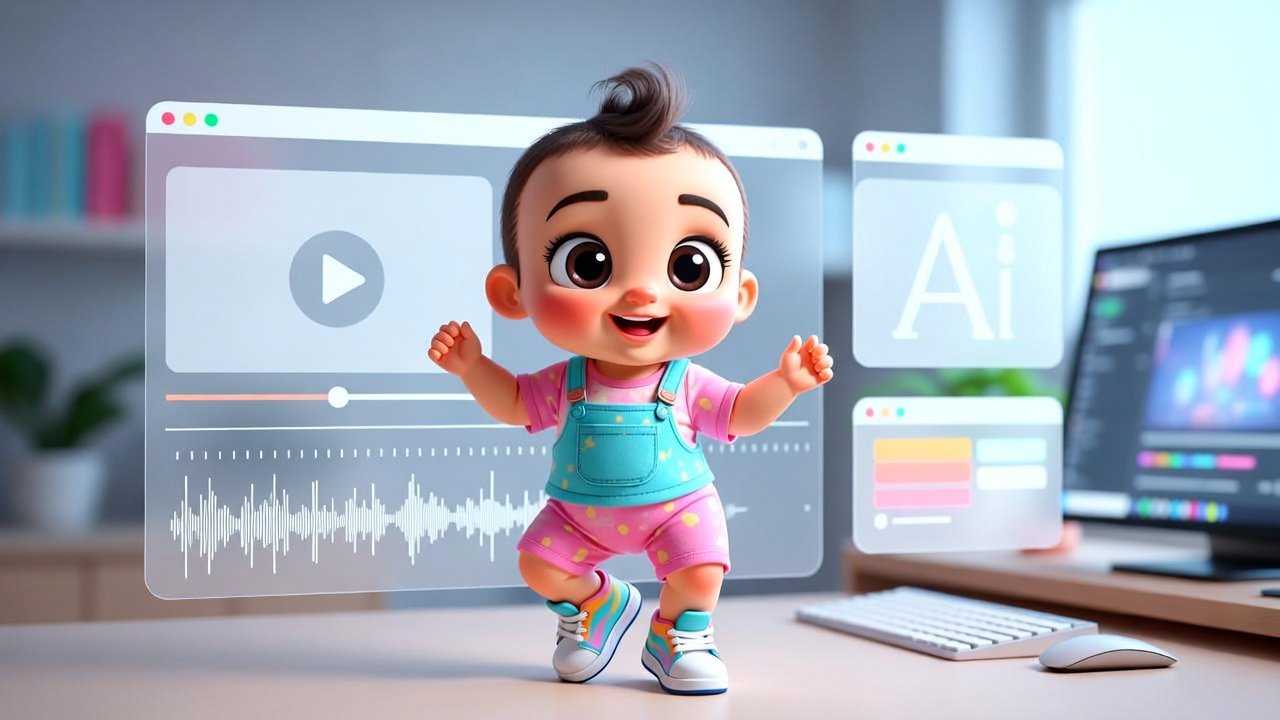
The single prompt method means creating both the baby character and the dancing animation using one carefully written AI prompt. Instead of writing separate prompts for image creation and motion, the same prompt is used to generate the baby image, which is then animated automatically.
This method works well because VideoExpress AI intelligently interprets the prompt during image generation, allowing the animation stage to proceed without extra instructions. For beginners, this removes confusion and speeds things up.
It’s also one of the safest and cleanest ways to create baby dance content, especially when using AI-generated characters instead of real baby photos.
For readers who want a deeper look at the platform’s features, limitations, and pricing, this VideoExpress AI review and full feature breakdown explains exactly what the tool can and cannot do.
Preparing Your Baby Dancing Video Prompt
Before logging into VideoExpress AI, the most important step is preparing a good prompt. This prompt describes the baby, the outfit, the mood, and the dance style — all in one place.
Any AI writing tool can be used to generate this prompt, such as ChatGPT, Grok, Claude, or similar platforms. The key is to keep the description clear, innocent, and animation-friendly.
Sample Single Prompt for Baby Dancing Video
Here’s an example you can adapt:
A cute chubby baby character dancing happily to upbeat music, fully clothed in colorful baby clothes and sneakers. Playful and innocent dance moves, gentle bouncing, side steps, hand waving, joyful expression. Bright lighting, clean background, cartoon-realistic style, full body visible, smooth motion, high quality, vertical video.
This single prompt will later be pasted directly into VideoExpress AI to generate the baby image that will be animated.
Step-by-Step: How to Create Baby Dancing Videos with VideoExpress AI
Step 1: Log in to the VideoExpress AI Dashboard
Visit the official dashboard at:
👉 app.videoexpress.ai
Log in to your account. New users may need to create an account first.
Once logged in, you’ll be taken to the main dashboard where all video creation tools are located.
Step 2: Click “Create Video from Prompt”
From the dashboard, select “Create Video from Prompt.”
Next, choose your preferred video orientation:
- Portrait (9:16) – best for TikTok, YouTube Shorts, and Instagram Reels
- Landscape (16:9) – best for YouTube videos
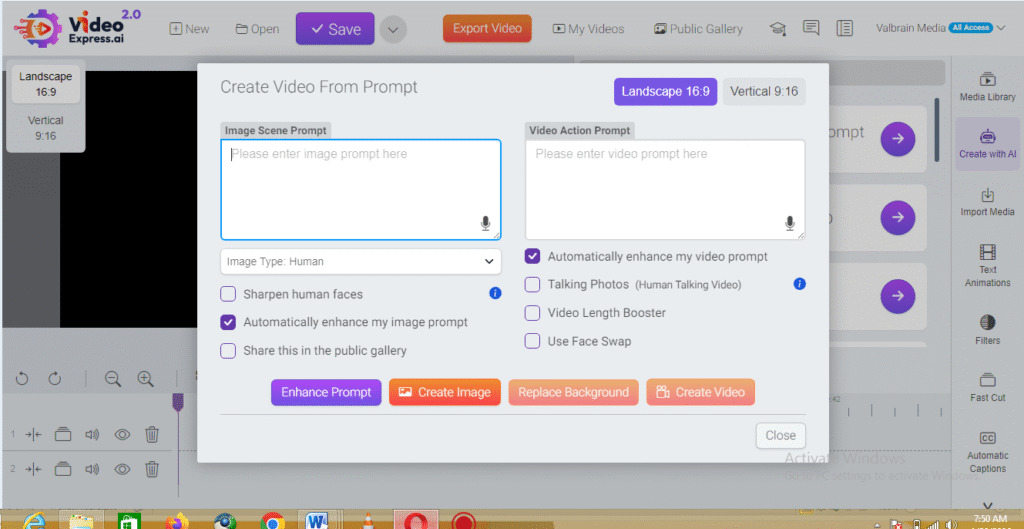
Portrait mode is strongly recommended for baby dancing videos, as short-form platforms prioritize vertical content.
Step 3: Paste the Prompt into “Image Scene Prompt”
This is the most important step.
Paste the single prompt you prepared earlier into the “Image Scene Prompt” text area.
⚠️ Important note:
Do not paste the prompt into the “Video Action Prompt” box. The single-prompt method works by generating the baby image first, which will then be animated automatically.
Once pasted, click Generate Image.
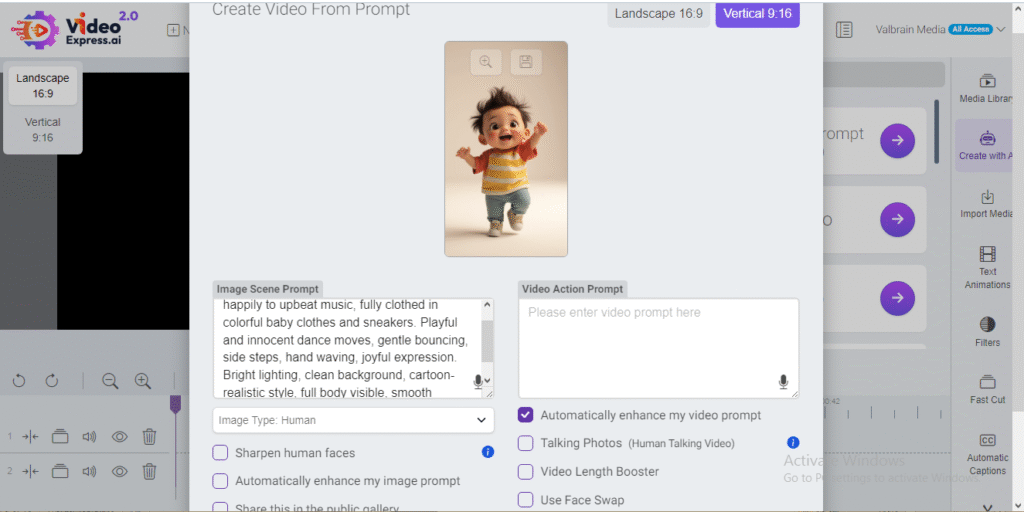
The AI will create a baby character based on your prompt. This usually takes just a few seconds.
Step 4: Click “Create Video” (No Extra Prompt Needed)
After the image has been generated successfully, click “Create Video.”
Leave the “Video Action Prompt” field empty — this is the workaround that makes the single-prompt method effective.
VideoExpress AI will animate the baby image using default motion logic, producing a dancing baby video without requiring additional instructions.
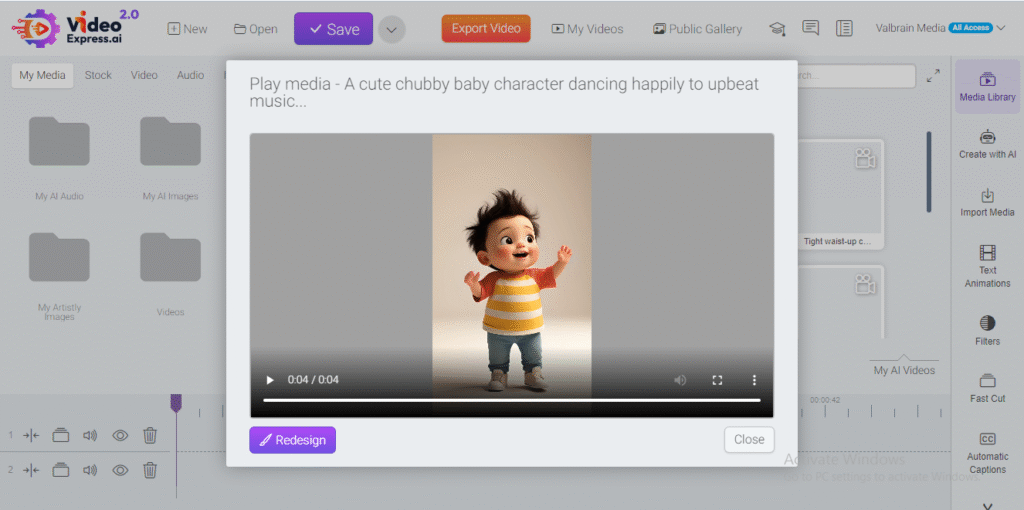
Once completed, the video will be saved automatically in your Video Library.
Editing and Final Touches
After the video is generated, there are two easy ways to finalize it:
Option 1: Use VideoExpress AI 2.0 Inbuilt Timeline Editor
VideoExpress AI includes a basic editor that allows you to:
- Add background music
- Trim the clip
- Adjust timing
- Export in high quality
This option is great for fast publishing.
Option 2: Download and Edit with CapCut
For creators who want more control, download the video and edit it in CapCut. This allows:
- Adding trending sounds
- Text captions
- Filters and transitions
- Platform-specific formatting
CapCut is especially useful for TikTok and Reels optimization.
Where to Share Your Baby Dancing Videos
Once the video is ready, it can be shared on:
- YouTube Shorts
- TikTok
- Facebook Reels
- Instagram Reels
Short videos between 7–12 seconds tend to perform best. Loopable dances, bright visuals, and playful music significantly increase engagement.
Why the Single Prompt Method Works So Well
This approach is popular because:
- It’s beginner-friendly
- No technical animation skills are required
- Fewer prompts mean fewer errors
- Faster video generation
- Ideal for bulk content creation
For creators planning to produce baby dancing videos regularly, this method saves time and simplifies the workflow.
Conclusion
Creating baby dancing videos no longer requires complex animation software or professional editing skills. With VideoExpress AI and the single-prompt method, anyone can generate adorable, shareable videos in just a few minutes.
By preparing one solid prompt, generating an image, and letting VideoExpress AI handle the animation, beginners can confidently create content suitable for Shorts, Reels, and TikTok. Whether the goal is fun content or future monetization, this method offers a smooth entry into AI video creation.
Frequently Asked Questions (FAQs)
1. Can real baby photos be used with this method?
It’s safer to use AI-generated baby characters. Using real baby photos may raise privacy and permission concerns.
2. Do prompts need to be rewritten for each video?
Prompts can be reused with small variations to create different baby characters and dance styles.
3. Is the Video Action Prompt required?
No. For the single-prompt method, leaving the Video Action Prompt empty is intentional.
4. What video length works best?
Videos between 7 and 12 seconds perform best on short-form platforms.
5. Can these videos be monetized?
Yes, especially when using AI-generated characters and platform-friendly music.