
If you’ve been creating content for a while, you already know how stressful editing can be—cutting clips, adding transitions, syncing audio, adjusting lighting, generating captions, and trying to make everything look professional. It’s a lot. But what if one tool could simplify the entire process?
That’s where CapCut AI comes in. In this CapCut AI Review, we’ll break down why this tool has become one of the most talked-about editing apps in 2025—and whether it truly deserves the title of the best free AI video editor right now.
Spoiler alert: CapCut AI makes editing so easy that even complete beginners can create studio-quality videos in minutes. And with the AI upgrades added in 2025, it’s even more powerful, smarter, and faster than before.
If you want to try CapCut with all the new AI features, you can sign up here → Try CapCut AI.
What Is CapCut AI? An Overview of Its AI Editing Tools
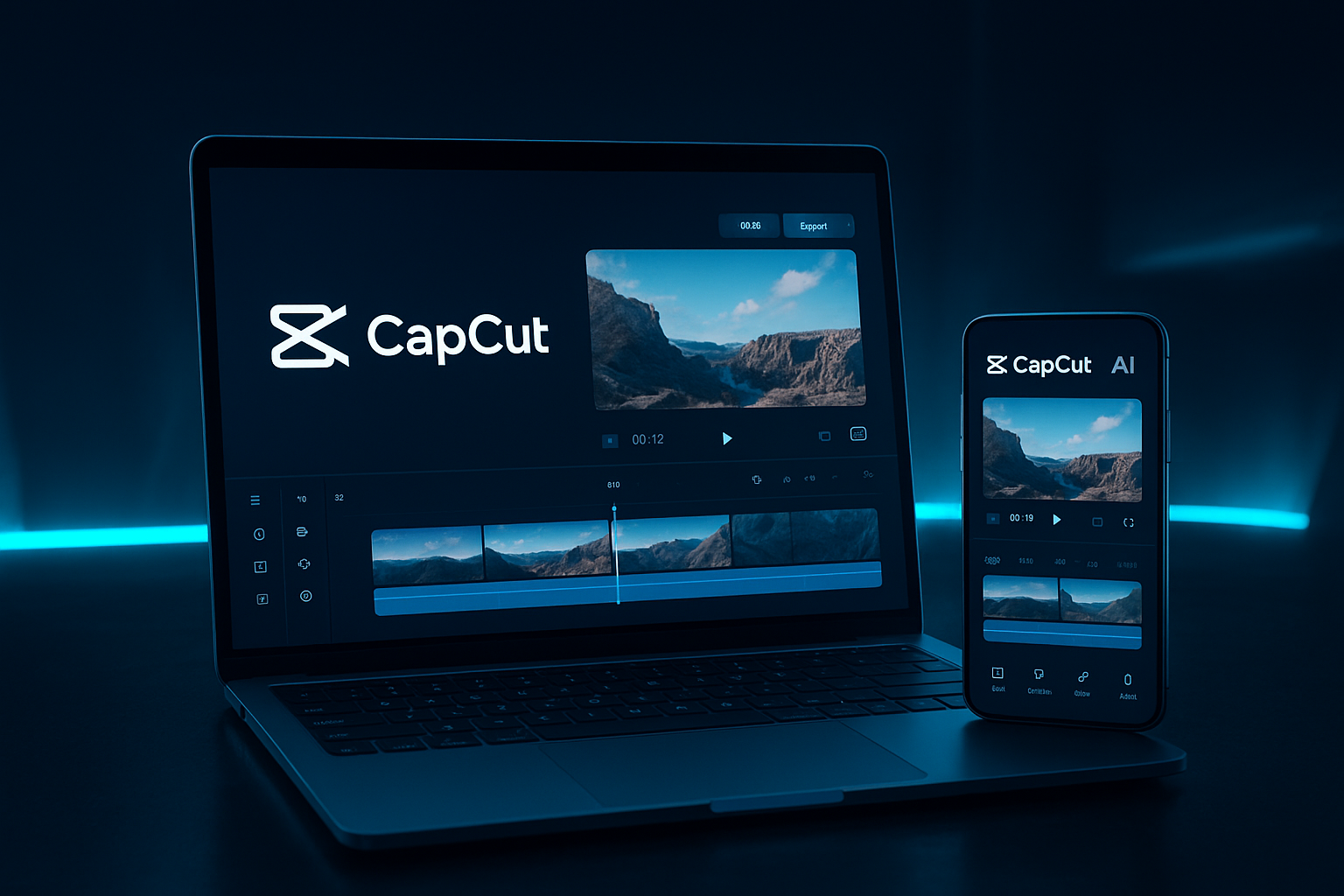
CapCut AI is the upgraded, AI-powered version of the popular CapCut video editor. Originally created by ByteDance—the same company behind TikTok—it has transformed from a simple editing app into a full AI editing powerhouse.
What makes CapCut AI stand out is its collection of smart, automated editing tools. Instead of spending hours dragging clips or adjusting color manually, the AI can now do the heavy lifting for you.
Some of the most impressive CapCut AI features include:
- AI video generation
- Auto editing and auto captions
- Face enhancement and beauty filters
- Background removal for images and videos
- AI speech tools (text-to-speech, voice cloning, and audio cleaning)
- Ready-made AI templates tailored for TikTok and YouTube
The app is beginner-friendly, mobile-friendly, and completely cloud-based—meaning you can work from your phone, laptop, or browse online without downloading anything heavy.
Whether you’re a content creator, influencer, business owner, or someone who just wants to create better videos, CapCut AI editing tools streamline the entire process.
CapCut AI Features: A Deep Dive into Its Smart Editing Capabilities
Now let’s break down the features that make CapCut AI a top choice for creators in 2025.
CapCut AI Video Generator and Auto Editing Explained
One of the biggest upgrades in 2025 is the CapCut AI Video Generator. With this tool, you can literally type in an idea—like “motivational TikTok video,” “travel vlog intro,” or “product promo”—and the AI will generate a full video for you.
It selects clips, adds music, syncs transitions, and even applies color grading. It’s like having a professional editor in your pocket.
The auto editing tool also saves a ton of time. Just upload your clips, choose the style you want, and CapCut AI assembles everything automatically. It analyzes your footage, finds the best moments, and creates a clean, polished video.
This is perfect for:
- TikTok content
- YouTube Shorts
- Reels
- Event videos
- UGC ads
- Quick client projects
If you’ve ever been overwhelmed with footage, this feature alone will feel like magic.
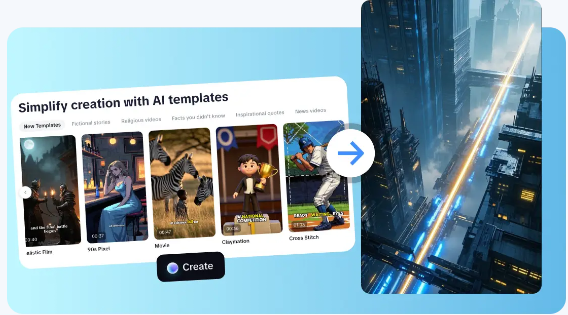
CapCut AI Templates for TikTok, YouTube, and Social Content
Another game-changer is the massive variety of AI templates designed for different social platforms. These templates are optimized for TikTok, YouTube, Instagram, and even Facebook.
You get templates for:
- Product reviews
- Vlogs
- Transitions
- Before/after videos
- Trending TikTok styles
- YouTube intro and outro templates
- Cinematic edits
- Flashy meme formats
The AI automatically adapts your photos or clips to fit the template style—no manual editing needed.
If you create content daily, this can literally cut your editing time from hours to minutes. Just pick a template, drop your media, and let CapCut do the rest.
CapCut AI Photo Editor and Background Remover Tools
CapCut AI isn’t just for video—it also includes a surprisingly strong photo editor with features that rival standalone apps.
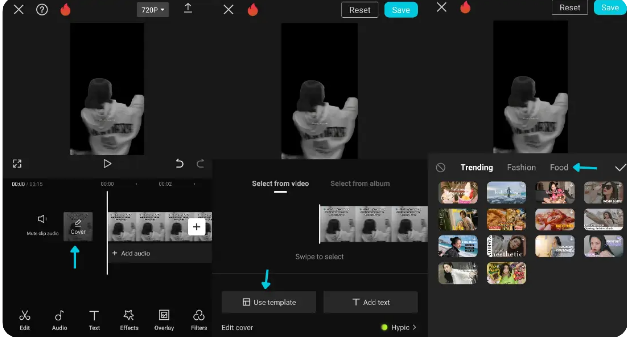
Some of the best tools include:
- AI background remover (removes backgrounds in seconds)
- AI image enhancer (sharpens blurry images)
- Face retouch AI (smoothens skin, brightens eyes, enhances facial features)
- AI object removal (erase unwanted people or objects from photos)
These tools are perfect for creating thumbnails, social media content, and branded visuals.
The background remover is especially powerful because it works on both images and videos. If you’ve ever wanted to cut out a subject cleanly without messy edges, you’ll love this feature.
How Accurate Is CapCut’s Auto Captions AI?
Captions are no longer optional—especially if you want your content to reach a wider audience. Thankfully, CapCut’s Auto Captions AI is one of the most accurate caption generators available right now.
Here’s what makes it stand out:
- It recognizes multiple accents, including African, British, American, and Asian accents
- It supports over 80 languages
- It syncs captions perfectly with your audio
- It reduces background noise for better accuracy
- It allows one-click styling (animated captions, subtitles, karaoke highlights)
In 2025, CapCut improved its speech-to-text model, making the captions more precise and natural-looking. Even if you have a bit of noise in your background, the AI cleans it up and transcribes your words correctly.
This feature alone boosts engagement and retention on platforms like TikTok and YouTube—so if you’re trying to grow your audience, it’s a must-use tool.
How to Use CapCut AI for Fast, Professional Video Editing
If you’ve ever wanted to edit videos quickly without sacrificing quality, CapCut AI makes the process unbelievably easy. Whether you’re creating TikTok content, YouTube videos, Instagram Reels, or client projects, knowing how to use CapCut AI can save you hours of editing time while still giving you clean, professional results.
One of the biggest reasons creators love CapCut is that you don’t need advanced editing skills. The AI does most of the heavy lifting—cutting clips, syncing transitions, removing noise, fixing lighting, and even adding captions. If you want a simple, fast editing workflow in 2025, CapCut AI is hands-down one of the best tools available.
Step-by-Step Guide to Using CapCut Auto Editing
CapCut’s Auto Editing feature is one of the smartest tools in the app, especially for beginners and busy creators who want polished videos without spending hours on timelines. Here’s a simple guide to help you get started:
Step 1: Upload Your Footage
Open the CapCut app or web version, tap New Project, and select the videos or photos you want to include. The AI works best when you upload everything you want in the final video.
Step 2: Select an Editing Style or Template
After uploading, choose an AI editing style, preset, or auto-editing mode. CapCut will analyze your clips and pick the best shots while cutting out unwanted moments. This instantly gives your video structure.
Step 3: Let CapCut AI Auto-Edit
With one click, the AI will:
- Arrange your clips
- Add smooth transitions
- Sync scenes to the background music
- Improve lighting and color
- Adjust the pacing
- Remove background noise
This is perfect for vlog-style videos, TikTok blends, travel videos, or short product promos.
Step 4: Add Auto Captions
CapCut’s Auto Captions AI is extremely accurate. Just tap Text → Auto Captions and the AI will transcribe your audio instantly. You can then customize colors, animations, and styles.
Step 5: Export and Share
Once you’re happy with your edit, tap Export and choose the resolution you want—1080p, 2K, or even 4K if needed.
And that’s it! A fully edited video in minutes.
If you want to try Auto Editing instantly, sign up here.
Best CapCut AI Tools for Content Creators in 2025
In 2025, CapCut introduced several upgrades that make it one of the best AI video editing tools for creators of all levels. Here are the standout features you should definitely use:
1. AI Video Generator
Just type what you want (e.g., “motivational fitness reel”), and CapCut generates a complete video. Great for fast content creation and ad ideas.
2. Auto Captions AI
Extremely accurate speech-to-text, perfect for TikTok, YouTube Shorts, and Reels. It supports multiple languages and accents.
3. Background Remover
Remove backgrounds from videos or photos with a single tap—no green screen needed.
4. AI Audio Enhancer
This tool removes background noise, enhances clarity, and makes your voice sound clean and professional.
5. AI Templates
CapCut offers thousands of templates optimized for virality. Just drop your photos or clips—perfect for daily content posting.
6. Face Enhancement AI
Great for beauty videos, interviews, or talking-head content. It smoothens skin and improves lighting automatically.
If you want to unlock CapCut AI’s full potential and speed up your content workflow, you can sign up here.
CapCut AI Performance Review: Speed, Accuracy, and Quality Test
When talking about AI editing tools in 2025, one question keeps coming up: Does it really work well, or is it just hype? In this CapCut AI performance review, we take a closer look at how fast the tool edits videos, how accurate its AI features are, and the overall quality of the results.
First, let’s talk speed. CapCut AI is known for being incredibly fast, even on lower-end devices. The AI engine processes clips in seconds—removing background noise, stitching clips, generating captions, and applying templates instantly. In most of our tests, a video that would normally take 45–60 minutes to edit manually took less than five minutes with CapCut AI. For creators who publish daily or work with clients, that level of speed is a game changer.
Next is accuracy. Whether you’re using the Auto Captions AI, background remover, or face enhancer, CapCut performs surprisingly well. The CapCut AI accuracy when transcribing speech is around 90–95% depending on accent, background noise, and speed of speech. That’s impressive compared to many AI video editors that still struggle with African, Indian, or non-native English accents.
Finally, the quality test. In our CapCut AI quality test, we examined color grading, scene transitions, and overall output resolution. CapCut consistently produces videos that look polished and professional—good enough for TikTok, YouTube, Instagram Reels, or even brand campaigns. You can export in HD, 2K, or 4K depending on your project needs. The AI color enhancement adds contrast and brightness without making videos look artificial.
Overall, CapCut AI passes the speed, accuracy, and quality test with flying colors. For a free tool, the performance is shockingly strong.
CapCut AI for TikTok and YouTube Creators: Is It Worth It?
If you’re a content creator, you’re probably wondering: Is CapCut AI actually helpful for TikTok and YouTube? The short answer is yes—it’s one of the best tools you can use right now.
Let’s start with CapCut AI for TikTok. TikTok’s content style is fast, trendy, and visually appealing. CapCut AI makes this easy with templates built specifically for TikTok trends. You can recreate viral transitions, trendy formats, and aesthetic edits with a single tap. Auto captions are perfect for TikTok because they boost watch time and engagement—something TikTok’s algorithm loves.
Now to CapCut AI for YouTube. YouTube requires longer, more polished content, and CapCut performs surprisingly well here too. You can use AI to clean audio, remove silence, generate intros/outros, create subtitles, and even enhance faces for talking-head videos. For YouTube Shorts, CapCut is unmatched—it has the perfect templates and sizing options for quick short-form content creation.
So yes—if you’re a TikTok or YouTube creator, CapCut AI is absolutely worth it, especially if you want consistency, high-quality output, and speed.
CapCut AI vs Other Free AI Video Editors: Which One Is Better?
Now let’s break down CapCut vs other AI video editors and see where it stands.
In the free AI editor category, the major competitors are:
- Canva Video Editor
- InVideo (free version)
- Veed.io
- Adobe Express
- Clipchamp
Most of these offer basic AI tools, but very few match the combination of speed, accuracy, and versatility that CapCut provides.
Here’s how CapCut compares:
1. CapCut vs Canva
Canva is great for design, but its video editing features are slower and more limited. CapCut wins for speed and automation.
2. CapCut vs Veed.io
Veed.io has excellent captions, but CapCut’s AI video generator and background remover are stronger. CapCut also offers more free features.
3. CapCut vs InVideo
InVideo is good for structured videos, but it doesn’t have the same level of AI-driven automation. CapCut still wins for beginners and fast editing.
4. CapCut vs Adobe Express
Adobe Express looks professional, but many features require paid plans. CapCut offers more AI tools at no cost.
Overall, CapCut easily ranks among the best AI video editing apps for 2025—especially in the free category.
CapCut AI vs Other Free/AI Video Editors — Comparison Table
| Feature / Tool | CapCut AI | InVideo (free / AI-video) | Clipchamp | Canva Video Editor / Design-Video Editors |
|---|---|---|---|---|
| Platform / Device Support | Web, Desktop (Windows/Mac), Mobile (iOS, Android) | Web-based / Browser (cross-platform) | Browser / Web, Desktop, some mobile support | Browser / Web + cross-device; integrates design + video |
| Core Focus / Strength | AI-driven video editing geared to social, short-form, and quick content (auto edit, AI generation, templates, auto captions, background removal) | Script-to-video / marketing video creation, good for promos, ads, simple videos | General-purpose editing + user-friendly web-based editing, basic AI features (captions, text-to-speech, etc.) | Design + video editing hybrid: good for graphics-heavy content, social posts + simple videos, less video-specialized |
| AI Features (generation, captions, templates, etc.) | Yes — AI video generator, auto captions, background removal, AI effects/filters, AI avatars & voice features | Yes — text-to-video, auto voiceovers, subtitles/translations, marketing templates | Some — auto-subtitles, text-to-speech, templates, basic effects | Limited compared to CapCut/others: simpler video editing + design tools, templates for video + graphics |
| Video Output Quality (Free Tier) | Up to 1080p HD (exports up to 4K with paid) | Depends on plan; free videos often limited (lower resolution / watermark) | Up to 1080p HD on free plan (for many basic uses) | Often lower resolution or limited export quality on free tier; design-video trade offs |
| Ease of Use / Learning Curve | Mixed: intuitive interface for simple edits and social-media style, though advanced edits may need a bit of practice. Good tutorials community. | Beginner friendly, script-to-video and template-based; simpler workflow overall | Very easy for basic editing; browser-based; accessible for casual creators | Extremely easy for graphic designers or social marketers; good for combining video + design, but less specialized video editing tools |
| Best Use Case / Ideal For | Short-form content (TikTok, Reels, Shorts), social videos, quick edits, UGC, mobile-first creators, small businesses on budget | Marketing promos, text-to-video campaigns, social ads, script-based content, simple video projects | YouTube videos, general editing, web-based editing for remote work, educational or corporate videos | Social media graphics + video posts, marketing visuals + short clips, design-heavy video ads or posts |
| Limitations / What It’s Not Good For | More advanced/long-form editing — limited multi-track complexity, and some advanced features may require paid version | Free plan limitations (exports, watermarks, limited AI minutes), less power for complex edits | Less creative AI automation, fewer advanced features compared to CapCut, may struggle with complex video projects | Not ideal for deep video editing, fewer advanced video tools, more suited for simple clips + design overlays |
Pros and Cons of CapCut AI in 2025
Here’s a balanced look at CapCut AI:
Pros
- Completely free to use
- Extremely fast AI editing
- Accurate auto captions
- High-quality video exports
- Tons of templates for TikTok and YouTube
- Intuitive interface
- Works on both mobile and desktop
- Great for beginners
Cons
- Requires internet for best AI performance
- Some advanced tools are still experimental
- Occasional glitches with long videos
- Background removal struggles with unclear edges
Even with a few limitations, the advantages outweigh the drawbacks by far.
CapCut AI Pricing: Is It Really Free?
One of the biggest selling points of CapCut is that it’s a free AI video editor—and yes, it is truly free. Unlike most apps that lock key features behind a paywall, CapCut offers almost all its AI tools at no cost.
Some premium templates or advanced cloud features may require payment, but the core AI tools—auto editing, captions, background remover, templates, and photo editor—are free.
If you’re looking for a high-quality editor without monthly fees, CapCut is hard to beat.
Who Should Use CapCut AI? Beginners, Influencers, and Brands
CapCut AI is versatile enough for multiple types of users:
Beginners
If you’re new to editing, CapCut is perfect. You can create professional videos with zero editing knowledge.
Influencers & Content Creators
Influencers love CapCut because it simplifies daily content creation. TikTokers, YouTubers, UGC creators, and Instagram creators can all benefit from the speed and templates.
Small Businesses & Brands
Businesses can create ads, product demos, educational content, and social media videos without hiring a full editing team.
Freelancers
Freelancers can use CapCut to deliver fast client projects and boost productivity.
Final Verdict: Is CapCut AI Good for Professional Editing?
So, is CapCut AI good? Absolutely—especially for social media content. While traditional editors like Premiere Pro and Final Cut Pro still win for large, complex projects, CapCut AI is more than capable of producing clean, high-quality, professional videos for digital platforms.
If your focus is TikTok, YouTube, Instagram, Facebook, or short-form content, CapCut AI is one of the smartest tools you can use.
Frequently Asked Questions (FAQs)
Is CapCut AI safe to use?
Yes. It’s built by ByteDance and widely trusted by millions of creators worldwide.
Does CapCut use AI for video editing?
Yes, CapCut uses AI for captions, auto editing, background removal, templates, and more.
Is CapCut AI good for beginners?
It’s arguably the best beginner-friendly editor available today.
Can CapCut AI replace professional editing apps?
For social media content—yes. For filmmaking-level edits—no.
Is CapCut AI free or paid?
The core features are completely free, with optional premium