

If you’re new to AI video tools, chances are you’ve seen impressive AI-generated videos online and wondered, “How are people actually making these?” You might even feel a bit intimidated, thinking it requires advanced editing skills or expensive software.
That’s where Video Express AI really shines.
VideoExpress AI is designed for beginners—people who want great-looking videos without dealing with timelines, layers, or complex editing apps. If you can describe a scene in words, you’re already halfway there.
This guide is for content creators, YouTubers, marketers, bloggers, and absolute beginners who want a clear, friendly walkthrough. By the end of this article, you’ll understand what VideoExpress AI is, how it works, how to write good prompts, and how to confidently create your first video from start to finish.
If you’d like a deeper breakdown of VideoExpress AI’s features, pricing, pros, and limitations, you can check out our full VideoExpress AI review here.
Table of Contents
Disclosure: This article contains affiliate links. If you use them, we may earn a small commission at no extra cost to you.
What Is VideoExpress AI?
At its core, Video Express AI is a tool that turns text and images into videos using artificial intelligence. It is an AI video generator tool.

Instead of filming footage or editing clips manually, you simply tell the AI what you want to see. The system interprets your description and generates a video complete with motion, lighting, and atmosphere.
You can create videos in a few different ways. The most common is text-to-video, where you type a description and let the AI build the scene. There’s also image-to-video, which allows you to upload an image and animate it. Some versions even support scene-based generation, where the AI stitches together multiple visual ideas.
What sets VideoExpress AI apart from many other AI video tools is how beginner-focused it is. The interface isn’t cluttered, and you’re not forced to learn technical editing terms. Everything revolves around one simple concept: describe what you want, then refine it.
Why Use Video Express AI? (Key Benefits)
One of the biggest reasons beginners love VideoExpress AI is how quickly it gets results. You don’t need editing experience, and you don’t need to install heavy software. Everything happens in your browser.
It’s especially useful for YouTube Shorts, TikTok, Instagram Reels, ads, and short promotional videos. Because AI handles the visuals, you can focus on ideas instead of technical work.
Another major advantage is time. What might take hours in traditional video editing can often be done in minutes here. And compared to hiring videographers or editors, it’s far more cost-effective—especially for solo creators and small businesses.
Video Express AI Features Explained
Text-to-Video Generation
This is the feature most beginners start with. You type a prompt describing the scene you want, and the AI generates a video to match it.
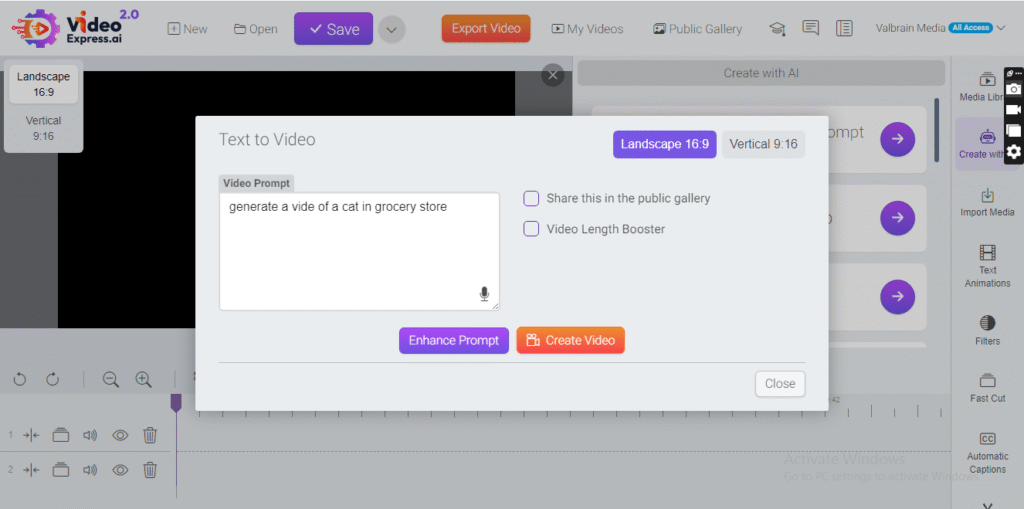
The better your description, the better the result.
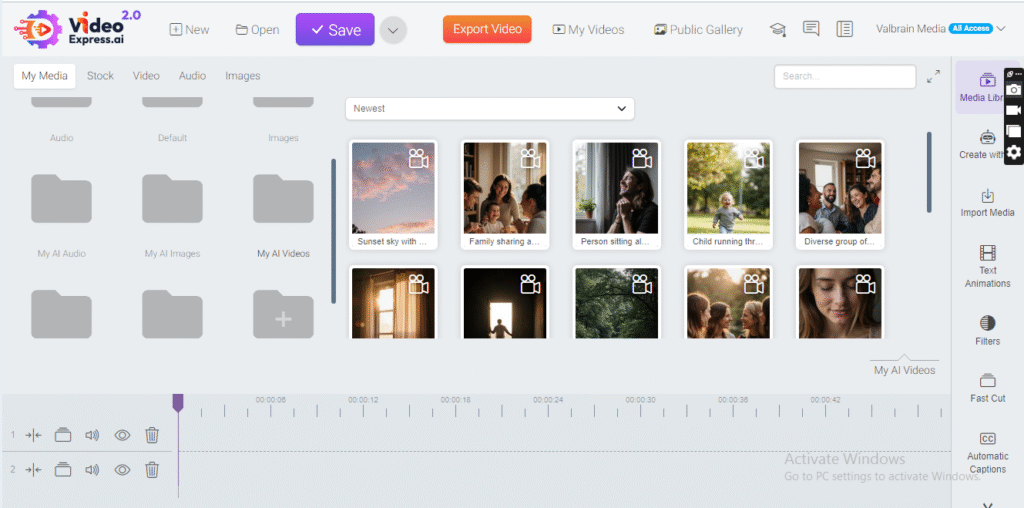
After typing your prompt, you can click “Enhance Prompt” to improve it. Then, click “Create Video”. The video will be generated and automatically saved in your library.
You can achieve a lot using Video Express AI as your text-to-video AI tool.
Image-to-Video Conversion
If you already have an image—maybe a photo, AI-generated artwork, or illustration—you can upload it and let VideoExpress AI add movement and depth. This is great for breathing life into static visuals.

t’s really simple!
Just pick an image from your library—or upload a new one—type in what you want your video to show, and hit “Create Video.” The AI will take care of the rest, and your video will appear ready to watch in no time.
Stylized Characters
VideoExpress AI allows you to create characters with unique visual styles, whether you want a cartoonish, anime, or realistic look. This is perfect for educational videos, explainer animations, or storytelling, letting your videos stand out with a consistent, recognizable visual style.
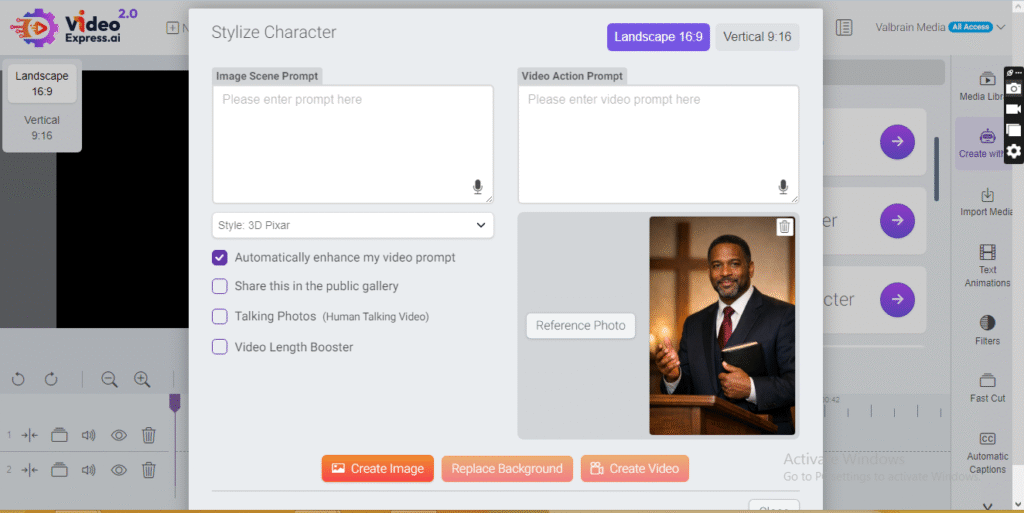
Creating a stylized character is easy!
Start by selecting an image to be used as reference from your library or uploading a new one. Then, choose the style you want—like 3D Pixar, anime, or comic book. Next, type in your image scene and video scene prompts, and finally click “Create Video.”
The AI will bring your character to life in the chosen style!
Consistent Characters Across Scenes
One of the challenges with AI video tools is maintaining the same character throughout a video. VideoExpress AI handles this by keeping characters consistent across multiple scenes, so your viewers recognize them from start to finish. This is especially useful for series content, branded videos, or tutorials where continuity matters.
Face Swap
The face swap feature lets you replace or animate a face in a video. This can be used for personalization, creating fun content, or generating realistic simulations in educational or creative projects. Combined with stylized characters, face swap makes it easy to produce engaging, customized videos without filming new footage.
Scene & Motion Control
You don’t need to animate anything manually, but you can guide how the video feels. By mentioning camera movement, speed, or transitions in your prompt, you influence how dynamic the video looks.
AI Styles, Lighting, and Effects
You can ask for cinematic lighting, dramatic shadows, soft natural light, or even animated styles. These details help set the mood and make your videos look more professional.
Export Formats and Video Quality
Once your video is ready, you can export it in formats suitable for social media platforms, usually in HD or higher quality depending on your plan.
How to Use VideoExpress AI (Step-by-Step Guide)
Step 1 – Create a VideoExpress AI Account
Start by visiting the VideoExpress AI website and signing up with your email or Google account. Once you’re logged in, you’ll see the main dashboard. Don’t worry if it feels unfamiliar at first—everything becomes clearer once you generate your first video.
If you want to follow along as you read, you can open VideoExpress AI in a new tab here.
Step 2 – Choose the Right Video Mode
You’ll typically see options like text prompts, image prompts, or templates. If you’re new, text-to-video is the best choice. It teaches you how the AI responds to descriptions and gives you the most control.
Templates can be helpful later, but starting from scratch helps you learn faster.
Step 3 – Write an Effective Prompt (Beginner Tips)
This is the most important part of using VideoExpress AI.
A good prompt usually describes:
- What is happening
- Where it’s happening
- The mood or emotion
- Lighting
- Camera movement
For example, instead of writing something vague like “make a nice video,” try something more descriptive:
“A person standing on a hill at sunset, warm golden lighting, slow cinematic camera movement, peaceful and hopeful mood.”
You don’t need fancy words. Just describe the scene like you’re explaining it to a friend.
Step 4 – Customize Your Video Settings
Before generating the video, you’ll see options for video length, resolution, and style. For social media, choose a vertical (9:16) format. Keep the video short at first, and stick to one clear idea per video.
Cinematic or realistic styles usually work best for beginners.
Step 5 – Generate and Preview Your Video
Click the generate button and give the AI a moment to work. When the preview appears, watch it closely. Look at the motion, lighting, and overall feel. Ask yourself if it matches what you imagined.
Step 6 – Edit, Refine, and Regenerate (If Needed)
If the video isn’t quite right, don’t panic. This is normal. Instead of starting over, tweak your prompt slightly. Adding phrases like “smoother camera movement” or “stronger lighting contrast” can make a big difference.
Regenerate the video and compare the results.
Step 7 – Download and Publish Your Video
Once you’re happy with the result, download the video and upload it to your platform—YouTube Shorts, TikTok, Instagram, or anywhere else. Make sure the format matches the platform’s requirements.
Best Prompt Examples for VideoExpress AI
For cinematic videos, you might try something like:
“Wide cinematic shot of a lone figure walking through a misty forest, soft morning light, slow camera pan, dramatic atmosphere.”
For social media shorts:
“Fast-paced vertical video of a modern city at night, glowing lights, smooth camera movement, energetic mood.”
For educational content:
“Clean animated explainer video showing digital data flowing through networks, bright lighting, simple background.”
For motivational or prayer videos:
“Hands lifted toward the sky, light breaking through clouds, slow-motion movement, peaceful and hopeful atmosphere.”
Common Mistakes Beginners Should Avoid
Many beginners write prompts that are too vague or try to cram too many ideas into one video. Others forget to mention lighting or camera movement, which makes the video feel flat. Another common mistake is using the wrong aspect ratio for the platform.
These mistakes are normal and easy to fix with practice.
VideoExpress AI Tips for Better Results
If you want smoother motion, mention it directly in your prompt. To get a cinematic look, always describe lighting and camera movement. Don’t be afraid to generate multiple versions—iteration is how you learn. And always tailor your prompts to the platform you’re posting on.
VideoExpress AI Pricing & Plans (Overview)
VideoExpress AI uses a one-time payment model instead of monthly subscriptions, which makes it appealing for beginners who don’t want recurring bills. The Basic plan costs $49 (one-time payment) and includes core features like text-to-video, image-to-video, HD exports, no watermarks, and commercial use rights—making it a solid starting point for learning prompts and creating short videos.
For users who want more advanced tools, the All-Access plan costs $179 (one-time payment) and unlocks extra features such as longer videos, faster rendering, advanced effects, subtitles, and creative tools like talking photos. Most beginners start with the Basic plan to build confidence, then upgrade later if they begin creating content regularly or professionally.
Ready to try it for yourself? Here’s the official VideoExpress AI page with current pricing and features.
VideoExpress AI vs Other AI Video Tools
| Tool | Ease of Use | Best For | Learning Curve | Pricing Style |
|---|---|---|---|---|
| VideoExpress AI | Very easy | Beginners, short videos, fast results | Low | One-time payment |
| Runway | Moderate | Advanced creators, detailed editing | High | Monthly subscription |
| Pika | Moderate | Creative AI animations | Medium | Monthly subscription |
| Luma | Moderate to high | Cinematic 3D-style videos | High | Monthly subscription |
Quick takeaway:
If you want speed, simplicity, and minimal learning, VideoExpress AI is the easiest place to start. Runway, Pika, and Luma are powerful, but they’re better suited for users willing to spend more time learning advanced controls.
For beginners who value simplicity and speed, VideoExpress AI is usually the easiest place to start.
Who Should Use VideoExpress AI?
VideoExpress AI is ideal for content creators, YouTubers, marketers, small businesses, bloggers, and educators—especially those who want professional-looking videos without editing headaches.
Yes, VideoExpress AI is beginner-friendly. Yes, it works well for YouTube Shorts. Commercial use depends on your plan. Video generation usually takes a few minutes. Most plans support HD-quality exports.
Conclusion
If you’re just starting out, VideoExpress AI is one of the easiest ways to enter the world of AI video creation. It is an AI video tool for beginners with You’ve learned what it is, how it works, how to write prompts, and how to refine your results.
Now the best thing you can do is experiment. Save prompts that work, try new ideas, and practice a little each day. The more you use it, the better your videos will become.
The best way to learn is to experiment. Try a few prompts, generate your first video, and improve as you go.
Frequently Asked Questions (FAQs)
Is VideoExpress AI beginner-friendly?
Yes, very much so. VideoExpress AI is designed for people with little or no video editing experience. If you can describe a scene in simple words, you can create a video. Most beginners get usable results within their first few tries.
Can I use VideoExpress AI for YouTube Shorts, TikTok, or Instagram Reels?
Absolutely. VideoExpress AI works especially well for short-form videos. Just select a vertical (9:16) format and keep your videos short. Many creators use it specifically for Shorts, Reels, and TikTok content.
Does VideoExpress AI allow commercial use of videos?
Commercial use depends on the plan you’re on. Some plans allow you to use the videos for monetized content, ads, or client work, while others may have restrictions. It’s always a good idea to check the licensing terms of your plan before publishing commercially.
How long does it take to generate a video with VideoExpress AI?
In most cases, video generation takes only a few minutes. Simpler videos generate faster, while more detailed prompts or longer videos may take slightly more time.
What video quality can I export from VideoExpress AI?
VideoExpress AI typically allows HD exports, and higher-quality options may be available on paid plans. The exported videos are suitable for social media platforms and online publishing.