
How to Create YouTube Shorts Using VideoExpress AI (Beginner-Friendly Guide)
YouTube Shorts have changed the game for content creators, marketers, and complete beginners. With videos lasting under 60 seconds and designed for mobile viewing, Shorts make it easier than ever to get discovered without fancy cameras, editing skills, or a big budget. One good idea, paired with the right tool, can reach thousands—or even millions—of viewers.
That’s where VideoExpress AI comes in.
VideoExpress AI is a beginner-friendly AI video creation tool that turns simple text prompts into short, engaging videos. No complex timelines. No confusing software. Just clear steps and fast results.
By the end of this guide, you’ll know exactly how to create a simple YouTube Short using VideoExpress AI—from preparing a script to generating visuals, creating motion, and exporting your final video with confidence.
Table of Contents
What Is VideoExpress AI?
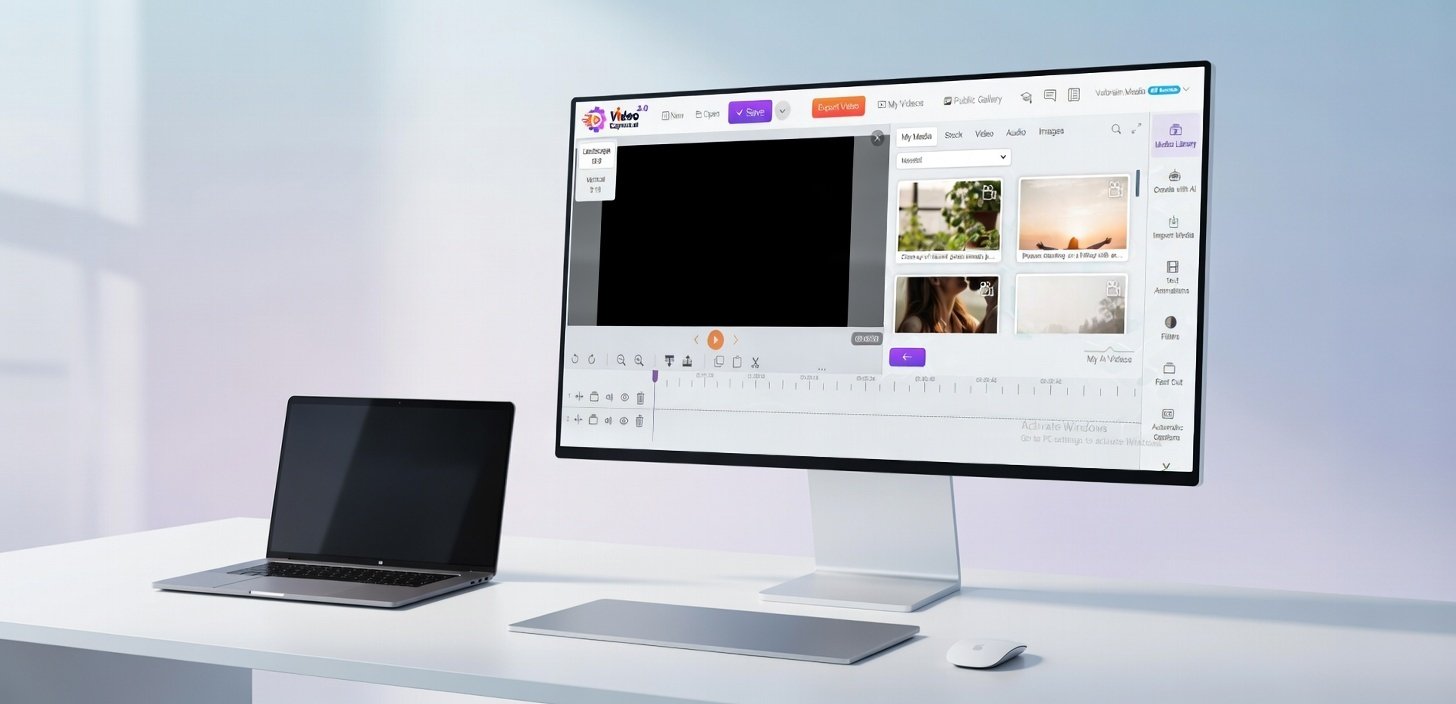
VideoExpress AI is an AI-powered video creation platform designed to help users turn text ideas into videos quickly. Instead of manually editing clips, adding effects, or learning advanced software, the tool handles most of the heavy lifting behind the scenes.
Users simply describe a scene, add an action prompt, and let the AI generate a video based on those instructions. This makes it especially appealing for beginners who want results without the steep learning curve.
For a deeper beginner-friendly breakdown of how the tool works under the hood, see:
What Is Video Express AI and How Does It Work? (Beginner Guide).
Why Use VideoExpress AI for YouTube Shorts?
Creating YouTube Shorts can feel intimidating at first. Many beginners worry about things like video editing skills, camera quality, or how to format videos correctly for mobile viewers.
VideoExpress AI removes those roadblocks.
One major advantage is speed. Shorts can be created in minutes instead of hours. There’s no need to learn traditional editing software, and the platform supports vertical 9:16 video, which is exactly what YouTube Shorts require.
Automation is another big win. The AI helps enhance prompts, generate visuals, and animate scenes, making the process smoother even for first-time users. For beginners who fear “doing it wrong,” VideoExpress AI offers structure and guidance at every step.
This combination of simplicity and automation makes it an ideal starting point for anyone new to AI video creation.
Prepare Your Script for a YouTube Short
Before opening VideoExpress AI, it helps to start with a simple script. YouTube Shorts may be short, but they still need a clear message. A basic script keeps the video focused and prevents rambling.
The good news? Writing a script doesn’t have to be hard.
AI tools like ChatGPT or Grok can generate short, punchy scripts in seconds. All that’s needed is a simple idea and a clear goal—such as teaching one tip, sharing a quick fact, or motivating viewers.
Here’s a simple script idea for a Short:
“Want to grow tomatoes faster on your balcony? This one small trick can double your harvest—without extra fertilizer.”
Short, clear, and curiosity-driven. That’s all that’s needed to get started.
If you’re curious about how text instructions become visuals behind the scenes, this guide explains it clearly: Text to Video AI Explained: How Prompts Turn into Videos.
Step-by-Step Guide to Creating YouTube Shorts Using VideoExpress AI
Now let’s walk through the actual creation process, one step at a time.
Step 1: Log in to VideoExpress 2.0
Start by visiting app.videoxpress.ai and logging into the VideoExpress 2.0 dashboard. Once inside, the interface is clean and beginner-friendly, with clear buttons and prompts guiding the process.
This is a great place to pause and explore briefly, but no advanced setup is required to begin.
Step 2: Click “Create Video from Prompt”
On the dashboard, click the “Create Video from Prompt” option. This tells VideoExpress AI that you want to generate a video using text instructions rather than uploading existing footage.
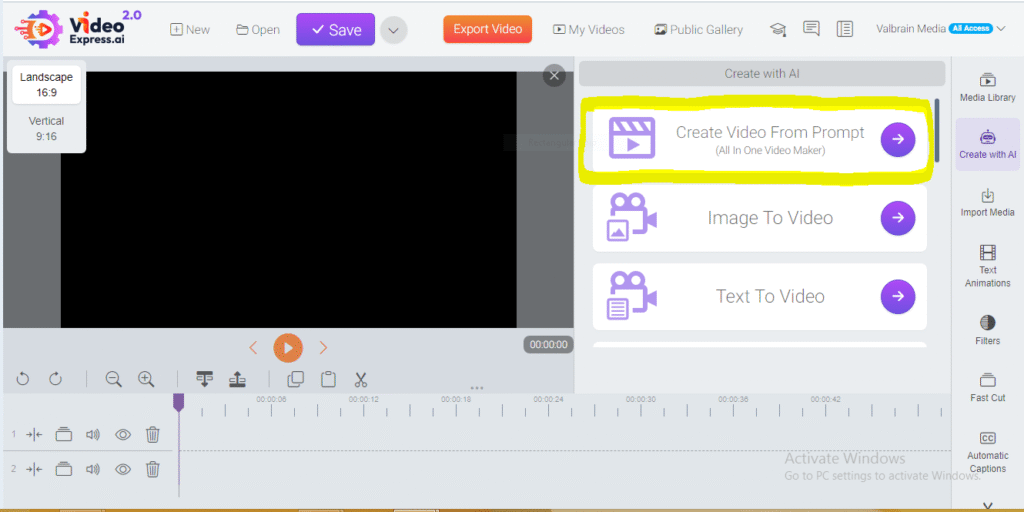
This option is perfect for YouTube Shorts because it’s fast and designed for AI-generated visuals.
Step 3: Select Vertical (9:16) Orientation
Next, choose the Vertical (9:16) orientation.
This step is critical. YouTube Shorts are displayed in a vertical format on mobile devices, and selecting 9:16 ensures the video fills the screen properly. Choosing the wrong orientation can make a Short look awkward or cropped.
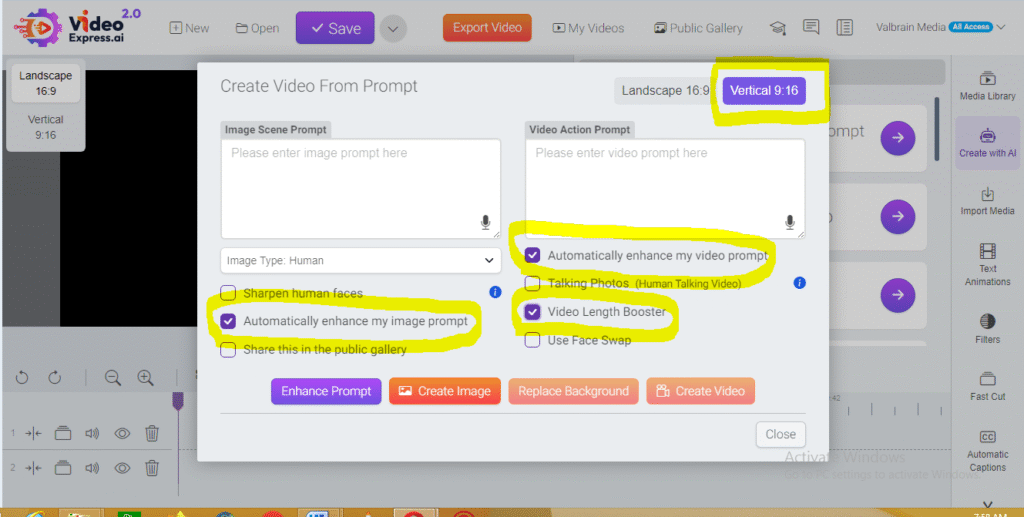
VideoExpress AI makes this easy with a simple dropdown or toggle—no resizing required.
Step 4: Enter the Image Scene Prompt
Now comes the creative part: the image scene prompt.
This is where you describe what the viewer should see. For example:
“A modern balcony garden with green tomato plants in containers, sunlight shining softly, realistic style.”
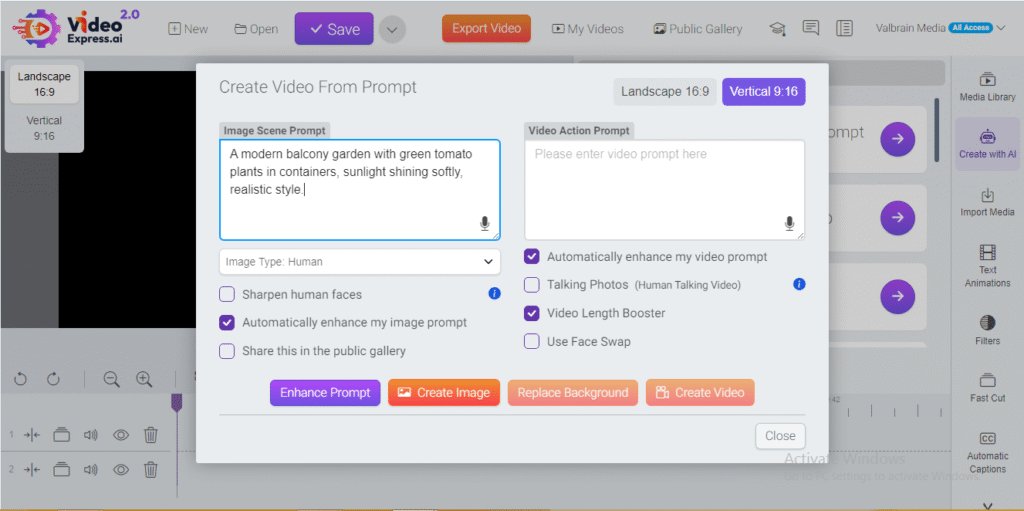
If writing prompts feels intimidating, don’t worry. VideoExpress AI includes tools to help.
The “Enhance Prompt” button rewrites your description to be more detailed and AI-friendly. There’s also an “Automatically Enhance My Image Prompt” checkbox. When enabled, VideoExpress AI will enhance prompts automatically every time, saving even more effort.
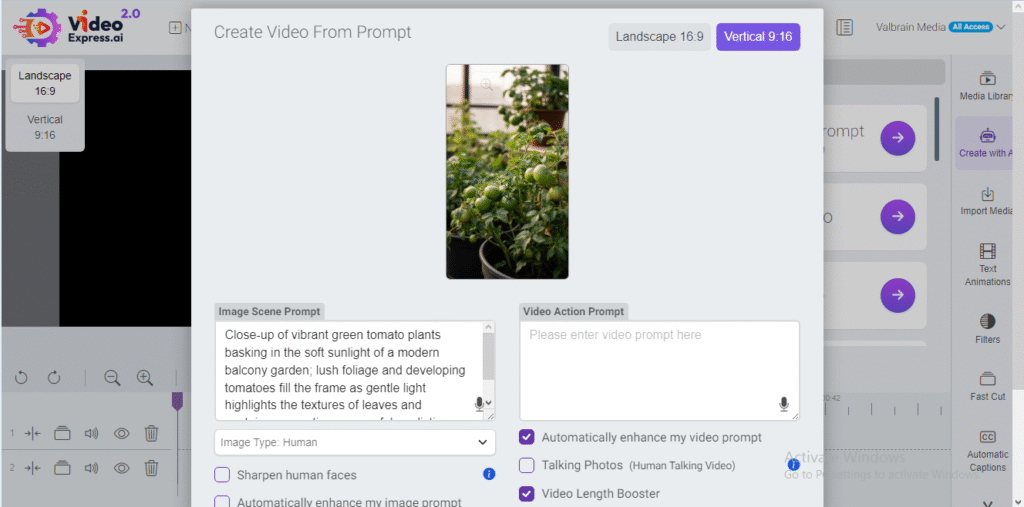
This feature is especially helpful for beginners who aren’t sure how detailed prompts should be.
Step 5: Create the Video Action
Once the image is generated, it will appear in the preview area of the workspace. This is your chance to confirm that the scene looks right.
Next, enter the Video Action Prompt. This tells the AI how the image should move. For example:
“Slow camera zoom-in with gentle leaf movement and soft lighting.”
After entering the action prompt, click “Create Video.”
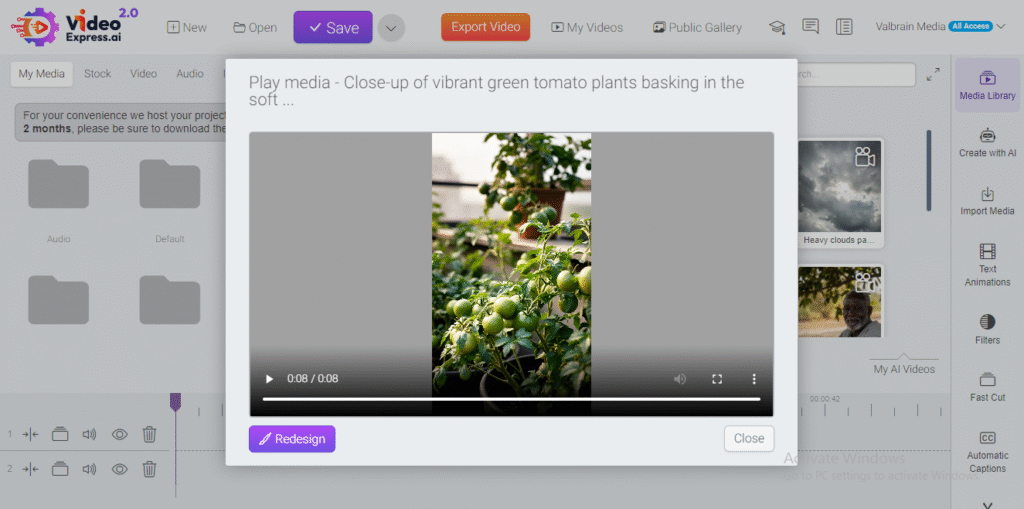
There’s also a Video Length Booster checkbox. When enabled, this option extends the video duration, making it more suitable for Shorts that need a bit more time to deliver the message.
Once submitted, a notification will confirm that the video is rendering. When processing is complete, the video will appear in your library, ready for preview and editing.
Editing and Final Touches
After the video is generated, there are a couple of ways to polish it.
VideoExpress AI includes a built-in timeline where transitions, background music, and simple effects can be added. This is a great option for beginners who want everything in one place.
Alternatively, the video can be downloaded and imported into tools like CapCut for more advanced edits, captions, or branding. Many creators prefer this workflow for adding subtitles, which are especially effective for YouTube Shorts.
Both options work well—it simply depends on how much customization is needed.
Common Beginner Mistakes (And How to Avoid Them)
Most beginners make a few predictable mistakes when starting with AI video tools.
Some use overly long scripts, which don’t work well for Shorts. Others forget to select the vertical format or rely too much on generic prompts, resulting in bland visuals.
Another common issue is skipping previews and publishing without checking the flow of the video.
These mistakes are easy to fix once you know what to watch for. A full breakdown of these issues—and how to avoid them—is covered here: AI Video Mistakes Beginners Make (And How to Fix Them).
Is VideoExpress AI Worth It for YouTube Shorts?
For beginners, VideoExpress AI offers a strong balance of speed, simplicity, and creative control.
The learning curve is gentle, especially compared to traditional video editing software. Most users can create their first Short on the same day they sign up. The prompt enhancement features reduce guesswork, and the vertical format support makes it ideal for Shorts.
While no tool is perfect, VideoExpress AI stands out as a practical starting point for anyone serious about creating short-form video content without technical overwhelm.
For a full breakdown of features, pricing, and comparisons, see: Video Express AI Review (2026): Features, Pricing, Use Cases, and the Best Alternative.
Start Creating Shorts with VideoExpress AI Now.
Conclusion
Creating YouTube Shorts doesn’t require professional editing skills, expensive equipment, or years of experience. With the right approach and a beginner-friendly tool like VideoExpress AI, anyone can turn simple ideas into engaging vertical videos.
The key is to start small, experiment with prompts, and learn by doing. Each Short created builds confidence and clarity. Over time, results improve naturally.
For beginners ready to take that first step into AI-powered video creation, VideoExpress AI offers an accessible and practical path forward—one Short at a time.
Frequently Asked Questions (FAQs)
Is VideoExpress AI good for complete beginners?
Yes, VideoExpress AI is designed with beginners in mind. The interface is simple, the steps are clearly labeled, and helpful features like prompt enhancement reduce the need for technical knowledge. Even users with no video editing or AI experience can create YouTube Shorts by following guided prompts and previews.
Do YouTube Shorts created with VideoExpress AI meet YouTube’s requirements?
Yes. As long as the Vertical (9:16) format is selected and the video length stays under 60 seconds, videos created with VideoExpress AI fully meet YouTube Shorts requirements. The platform makes it easy to choose the correct orientation from the start, avoiding common formatting mistakes.
Can scripts be generated outside VideoExpress AI?
Absolutely. Many beginners use tools like ChatGPT or Grok to generate short scripts before opening VideoExpress AI. These scripts can then be turned into image and action prompts inside the platform. This workflow often leads to clearer storytelling and better-performing Shorts.
What is the difference between an image prompt and a video action prompt?
The image prompt describes what the scene looks like, such as the environment, objects, or mood. The video action prompt describes how the scene moves, such as camera motion, lighting changes, or subtle animations. Using both together helps the AI produce more realistic and engaging videos.
How long does it take to generate a YouTube Short with VideoExpress AI?
In most cases, video generation takes just a few minutes. The exact time depends on server load and whether options like the Video Length Booster are enabled. Once rendering is complete, a notification appears and the video becomes available in the library for preview or download.
Can videos be edited after they are generated?
Yes. Videos can be edited directly inside VideoExpress AI using the built-in timeline for transitions, sounds, and effects. They can also be downloaded and edited further in tools like CapCut, especially for adding captions, branding, or advanced effects.
Is VideoExpress AI better than traditional video editing software for Shorts?
For beginners, yes. Traditional editors often require a steep learning curve and manual work. VideoExpress AI focuses on speed, automation, and ease of use, making it a better choice for quickly producing YouTube Shorts without technical stress.
Will using AI-generated videos affect channel growth?
AI-generated videos can perform just as well as traditional videos when the content is valuable and engaging. Strong hooks, clear messaging, and consistency matter more than how the video is created. VideoExpress AI simply helps creators focus on ideas instead of technical barriers.