
Creating cartoon story videos used to feel out of reach for many creators. You needed animation skills, expensive software, and a lot of time. Today, tools like VideoExpress AI have completely changed that. With the right prompts and a simple workflow, you can turn a basic story idea into a full cartoon video—even if you’ve never animated anything before.
In this guide, I’ll walk you through how to create cartoon story videos with VideoExpress AI, step by step. We’ll cover story creation, character design, scene generation, voice-over narration, and final editing. Everything is explained in a simple steps, so beginners can follow without stress.
Table of Contents
What Is VideoExpress AI and How Does It Work?
VideoExpress AI is an AI-powered video creation platform designed to help users generate videos using text prompts, images, and voice narration. Instead of manually animating scenes, you describe what you want the video to look like, and the AI does the heavy lifting for you.
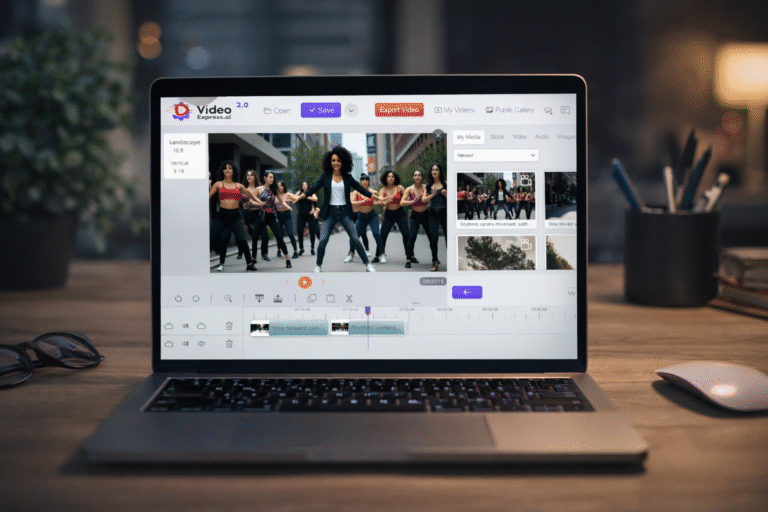
At its core, VideoExpress AI allows you to create videos by combining AI-generated visuals with motion and sound. You can generate short clips scene by scene, then arrange them on a built-in timeline. This makes it especially useful for storytelling, where scenes need to flow in a logical and visual order.
Many creators use VideoExpress AI for cartoon storytelling videos, faceless YouTube content, TikTok and YouTube Shorts, explainer videos, and even music videos. One of its strongest features is the ability to maintain consistent characters across scenes, which is something many AI video tools struggle with.
Why VideoExpress AI Is Ideal for Cartoon Storytelling
Cartoon stories depend on continuity. Characters shouldn’t randomly change faces, outfits, or styles from one scene to another. VideoExpress AI solves this problem by allowing you to upload a reference character and reuse it across scenes.
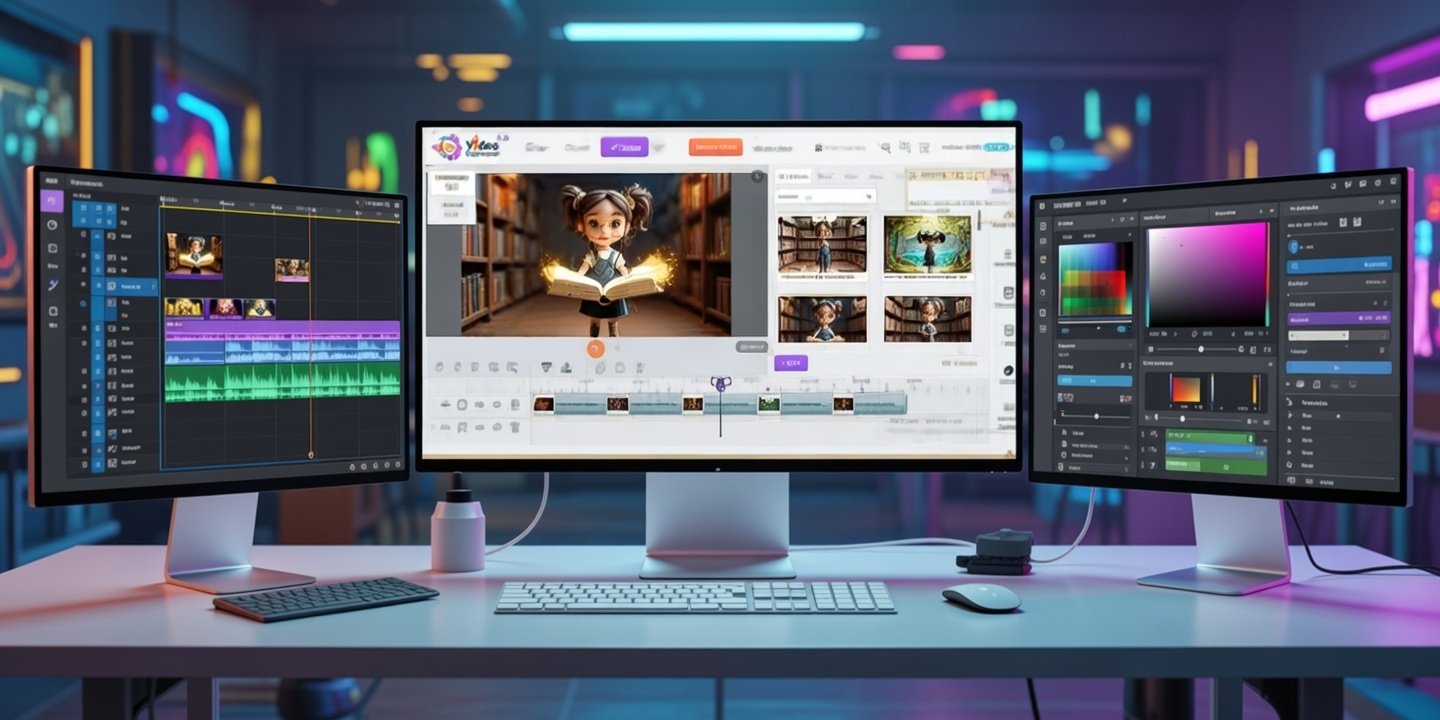
Another reason VideoExpress AI works so well is that it combines image creation, animation, voice-over, and editing in one place. You don’t need to jump between multiple tools or complicated software. Everything happens inside one dashboard, which saves time and reduces frustration.
If your goal is to create engaging cartoon story videos consistently, VideoExpress AI gives you a simple but powerful workflow.
Prefer to watch instead of read?
In the video below, Andrew of AI Tutor Labs walks you through the entire process of creating a cartoon story video with VideoExpress AI—from writing your story prompts to generating scenes, adding voice-over narration, and final edits.
This video follows the same steps explained in this guide, so you can watch along or jump straight to the section you need.
If you’re following along with the video, keep scrolling for a detailed written breakdown of each step, including copy-and-paste prompts and extra tips for beginners.
Step One: Create Your Story, Image Prompts, and Voice-Over Script
Before opening VideoExpress AI, you need to prepare your story. This is where tools like ChatGPT or Microsoft Copilot come in handy. You’ll use them to create a short story, break it into scenes, and generate image prompts and narration scripts.
Let’s look at a complete five-scene example you can reuse or modify.
Sample Cartoon Story: Page Turner
This story is about an old library book that feels forgotten in the digital age—until a curious child discovers it and unlocks the magic hidden inside its pages.
The story is broken into five short scenes so it works perfectly for cartoon videos and short-form content.
Scene One: The Forgotten Book
The story opens inside a quiet library. An old book sits alone on a dusty shelf, surrounded by modern devices and untouched by readers. The mood feels calm but slightly sad, as if the book has been left behind by time.
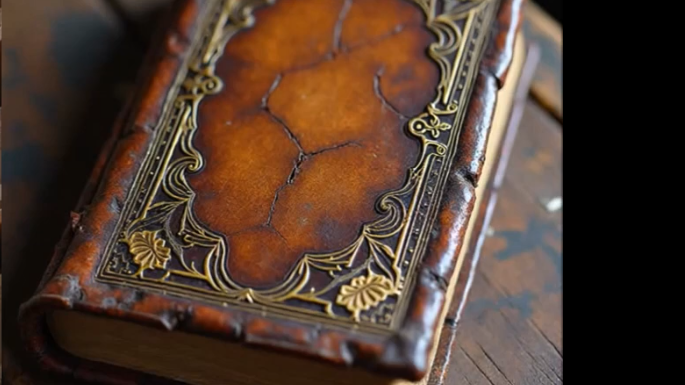
Image Prompt:
A dusty old library shelf with an ancient book glowing faintly, warm lighting, cinematic cartoon style, soft shadows, magical realism.
Voice-Over Script:
“In a quiet corner of the library, an old book waited… forgotten, but not empty.”
Scene Two: The Curious Child
A child walks through the library without much interest—until they notice the old book. Something about it feels different. The child gently pulls it from the shelf, curiosity written all over their face.
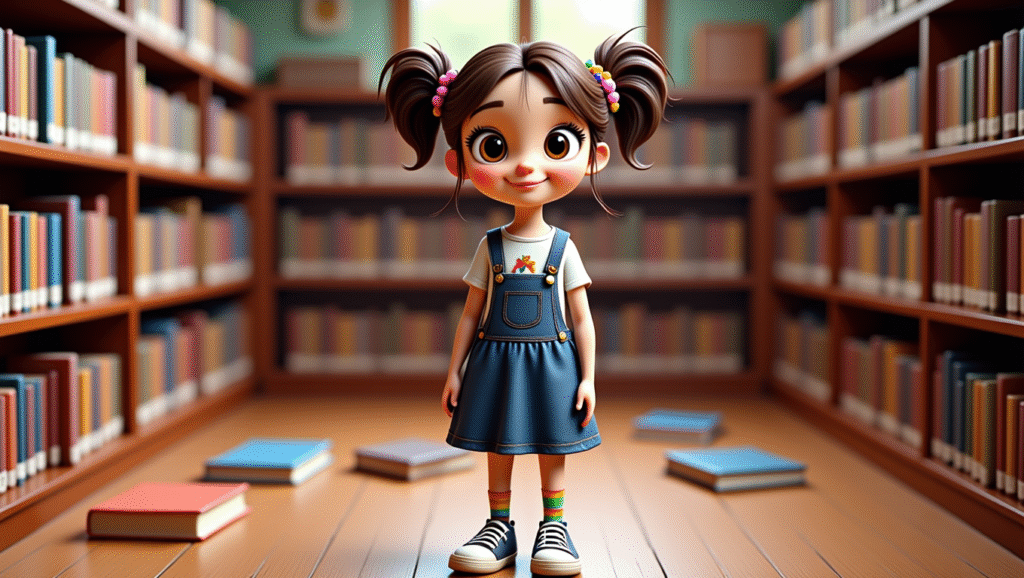
Image Prompt:
A curious child holding an old glowing book inside a library, wide eyes, soft golden light, colorful cartoon illustration style.
Voice-Over Script:
“Curiosity has a way of finding stories the world leaves behind.”
Scene Three: Magic Awakens
As the book opens, glowing letters rise from the pages. Fantasy creatures, castles, and landscapes swirl into the air, filling the space with wonder and movement.
Image Prompt:
An open book releasing magical light, floating letters, fantasy creatures, vibrant cartoon art, whimsical style.
Voice-Over Script:
“When the page turned, the story refused to stay still.”
Scene Four: Inside the Story
The child is pulled into the world of the book itself. Now standing inside a magical land, the child explores forests, castles, and dreamlike environments created from imagination.
Image Prompt:
A child inside a fantasy world emerging from a book, forests and castles blending together, colorful cartoon environment.
Voice-Over Script:
“This was no longer a story to read… it was a world to live in.”
Scene Five: A Story Lives On
The child returns the book to the shelf, smiling. The book glows softly again, no longer forgotten, waiting patiently for the next reader.
Image Prompt:
An old book glowing softly on a library shelf, peaceful cartoon atmosphere, warm and hopeful lighting.
Voice-Over Script:
“No story ever fades… it only waits for the next reader.”
Step Two: Create Your Cartoon Character Using Artistly AI
To keep your character consistent across all scenes, it’s best to create it first using Artistly AI. Artistly AI allows you to generate high-quality cartoon and 3D-style characters from text prompts.
Once you’re happy with your character design, save the image. This image will be uploaded into VideoExpress AI and reused as a reference throughout your video.
Step Three: Upload Your Character into VideoExpress AI
Now open VideoExpress AI and upload your character image. Choose the Create with AI option and enable Consistent Character mode. This ensures the character keeps the same appearance across all scenes.
This step is crucial for storytelling. Without a consistent character reference, AI-generated scenes can look disconnected.
Step Four: Create the First Scene in VideoExpress AI
Paste the first scene’s image prompt into the Image Prompt box. Add your character image as Reference Photo, then select 2D from the style dropdown. This style works best for cartoon storytelling.
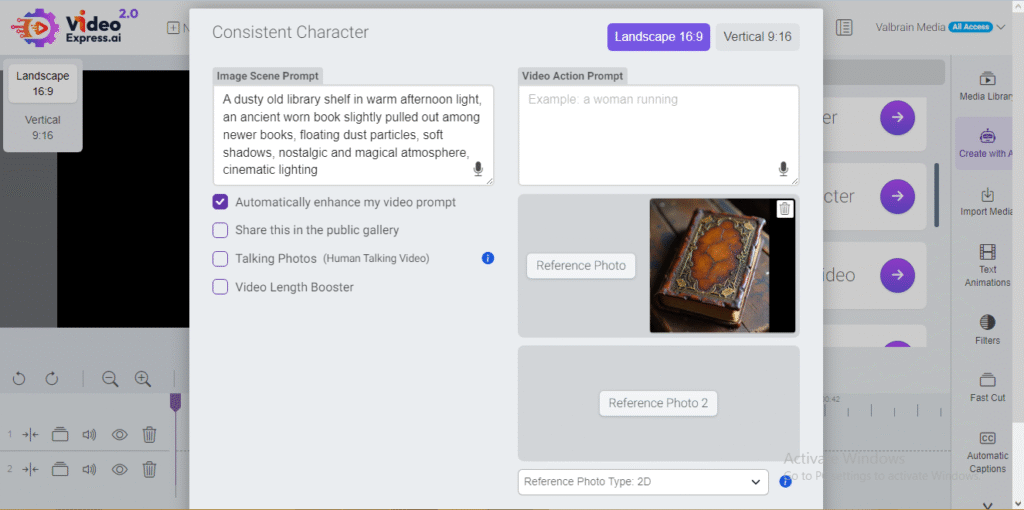
Next, copy the same image prompt and paste it into the Video Action Prompt. Turn on the Video Length Booster and click Create Video. VideoExpress AI will generate a short animated clip based on your prompt.
Step Five: Generate the Remaining Scenes
For the second scene, clear all prompt boxes. Paste the second scene’s image prompt and add your character to Reference Photo 2. Click Create Image first, then save the generated image.
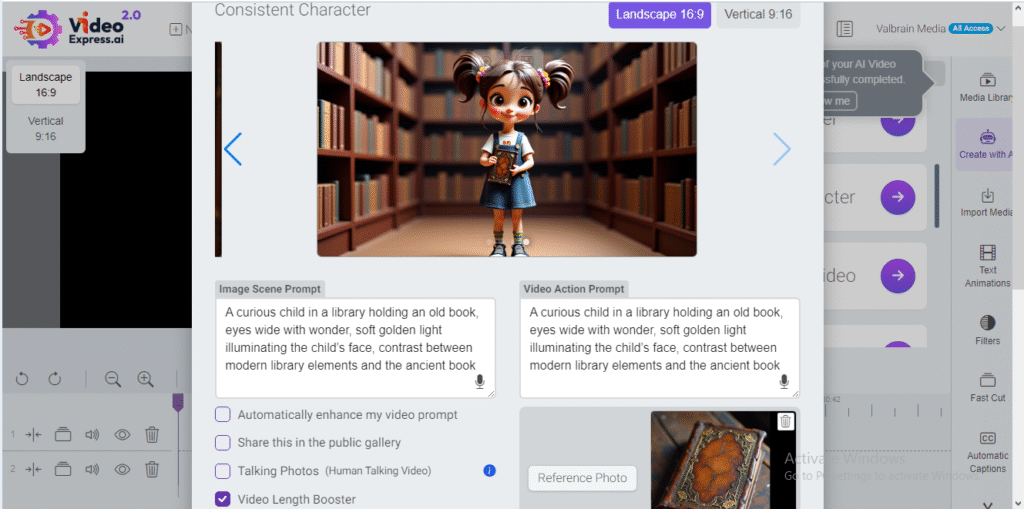
Once saved, copy the image prompt into the Video Action Prompt and click Create Video. Repeat this exact process for scenes three, four, and five.
By the end of this step, you’ll have multiple short video clips—one for each scene.
Optional Step: Create a Title Scene
If you want a more polished look, you can create a title scene with your story name. This works well for branding and viewer retention, especially on YouTube Shorts and TikTok.
Finishing Edits Inside VideoExpress AI
Once all scenes are ready, drag them into the VideoExpress built-in timeline and arrange them in the correct order. This is where your story really comes together.
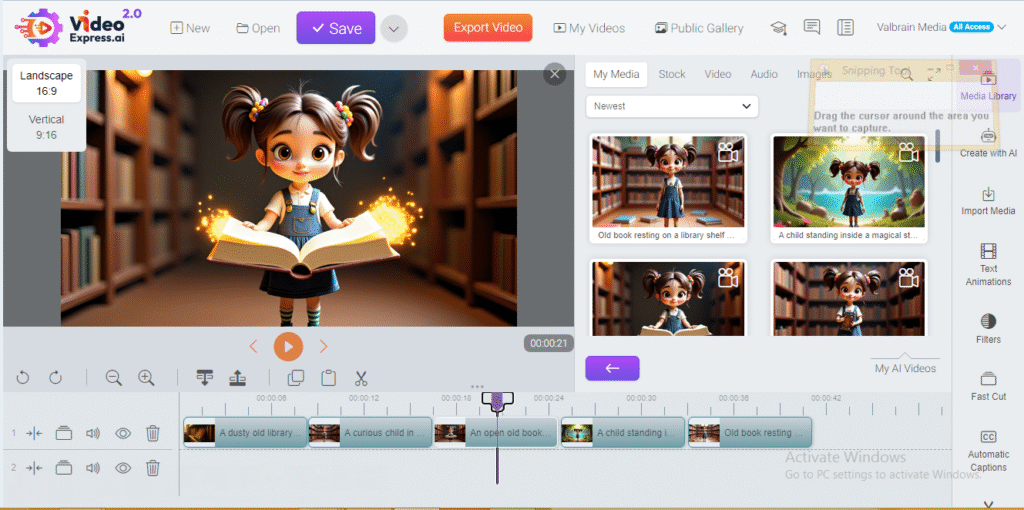
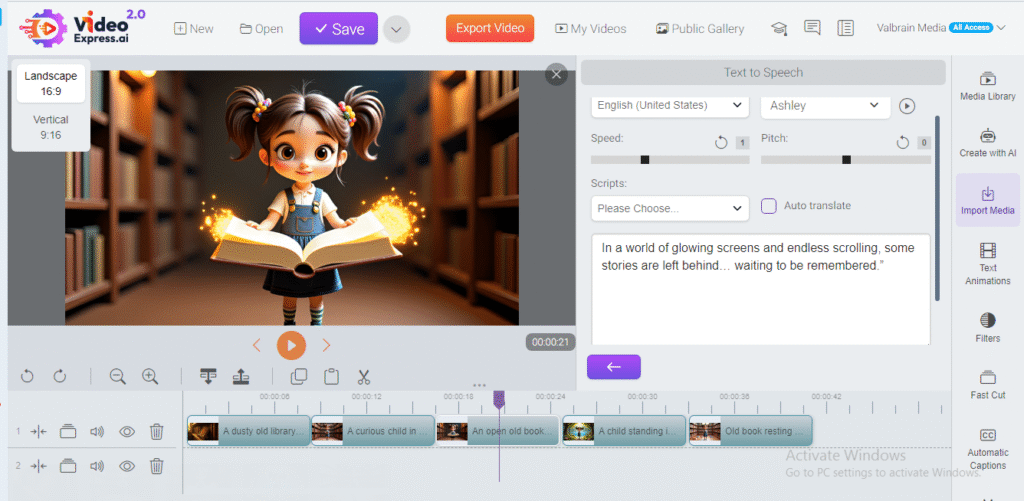
To add narration, click Import Media, then choose Text to Speech. Select your preferred language, voice, and tone. Paste the voice-over script for each scene and click Import Speech.
Next, open the Media Library, go to My AI Audio, add a new audio track to the timeline, and place the narration beneath the video scenes. Adjust the timing so the voice aligns perfectly with each scene.
You can also add background music by opening the Audio tab and selecting a sound that complements your story. Keep the volume low so it doesn’t overpower the narration.
VideoExpress AI Alternatives
If you’re exploring other tools, alternatives include Runway ML, Pika Labs, Animoto, and InVideo AI. However, when it comes to cartoon storytelling with consistent characters, VideoExpress AI remains one of the most beginner-friendly options available.
Related VideoExpress Tutorials
Here are more essential VideoExpress AI tutorials from our team that you won’t want to miss 🚀:
- How to Create a Consistent Character in VideoExpress AI 2.0
- How to Create Faceless Storytelling Videos Using VideoExpress AI
- How to Create Baby Dancing Videos with VideoExpress AI
- How to Create YouTube Shorts Using VideoExpress AI
Conclusion
Learning how to create cartoon story videos with VideoExpress AI opens the door to endless creative possibilities. You no longer need animation skills or expensive software. With a simple story, well-written prompts, and AI narration, you can produce engaging cartoon videos that look polished and professional.
Whether you’re building a storytelling channel, creating kids’ content, or experimenting with short-form videos, VideoExpress AI gives you everything you need to start fast and grow consistently.
Frequently Asked Questions
Is VideoExpress AI good for beginners?
Yes. VideoExpress AI is designed for users with no prior video editing or animation experience.
Can I reuse the same character in multiple videos?
Yes. The consistent character feature allows you to reuse characters across scenes and future projects.
Is VideoExpress AI suitable for YouTube Shorts and TikTok?
Absolutely. The platform works very well for short-form storytelling content.
Do I need Artistly AI to use VideoExpress AI?
No, but Artistly AI makes it easier to create professional and consistent characters.